Text clips
Select the Text button in the timeline toolbar to add a text clip at the playhead. The clip is added to a video track and can be moved, trimmed, and layered like other visual clips.
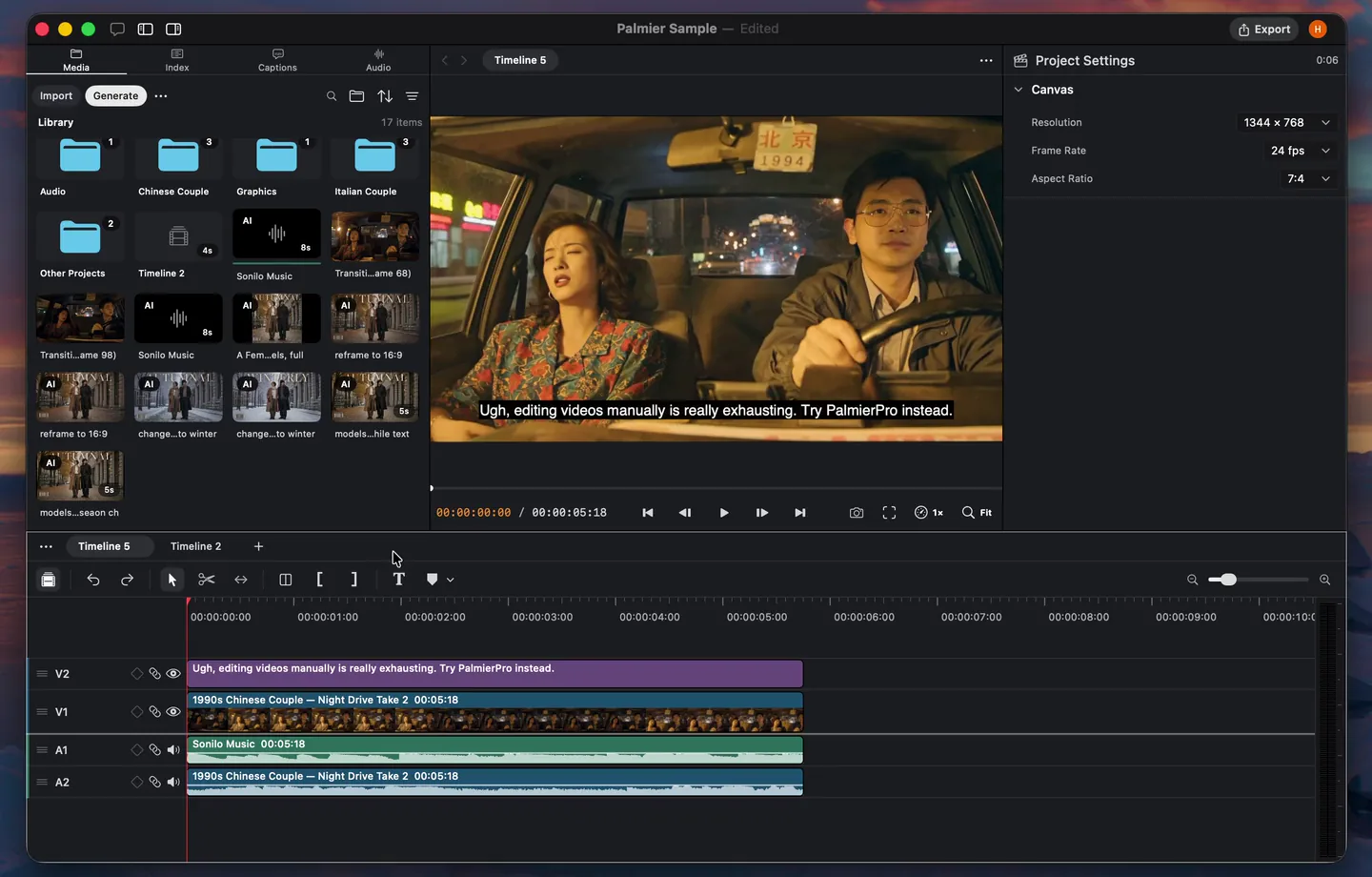
Styles
Use the inspector to style the selected text clip:
- Typography: Choose the font, size, weight, case, tracking, and line spacing.
- Color and fill: Use a solid color, reveal footage through the letters, or invert the footage below.
- Outline and shadow: Add separation when text needs to stay readable over footage.
- Background: Add a padded background with its own color, opacity, outline, and corner radius.
- Alignment and position: Align the text, move it around the canvas, and control its vertical placement.
- Scale and perspective: Stretch the width or height, rotate the text, or add perspective tilt.
- Effects: Adjust opacity and blur.
Keyframes
Animate position, scale, rotation, opacity, and blur from the text track's keyframe lanes. Add keyframes at different points to change the text over time.
Animation
Animate text without building keyframes manually. An animation combines three controls:
- Effect: How text enters: Fade, Rise, Pop In, Punch In, Blur In, From Left, From Right, or Typewriter.
- Delivery: Whether the effect plays All at Once, By Line, or By Word.
- Highlight: Mark the active word with Color, Block, or Karaoke.
Hover or select an animation to preview it on the canvas.
Batch edit
Drag across multiple text clips on the timeline to select them together. Change a style in the inspector to apply it across the full selection.
Batch editing is useful for keeping titles, labels, and repeated text treatments consistent without updating every clip individually.
Captions
Open the Captions tab in the media panel to turn timeline speech into caption clips.
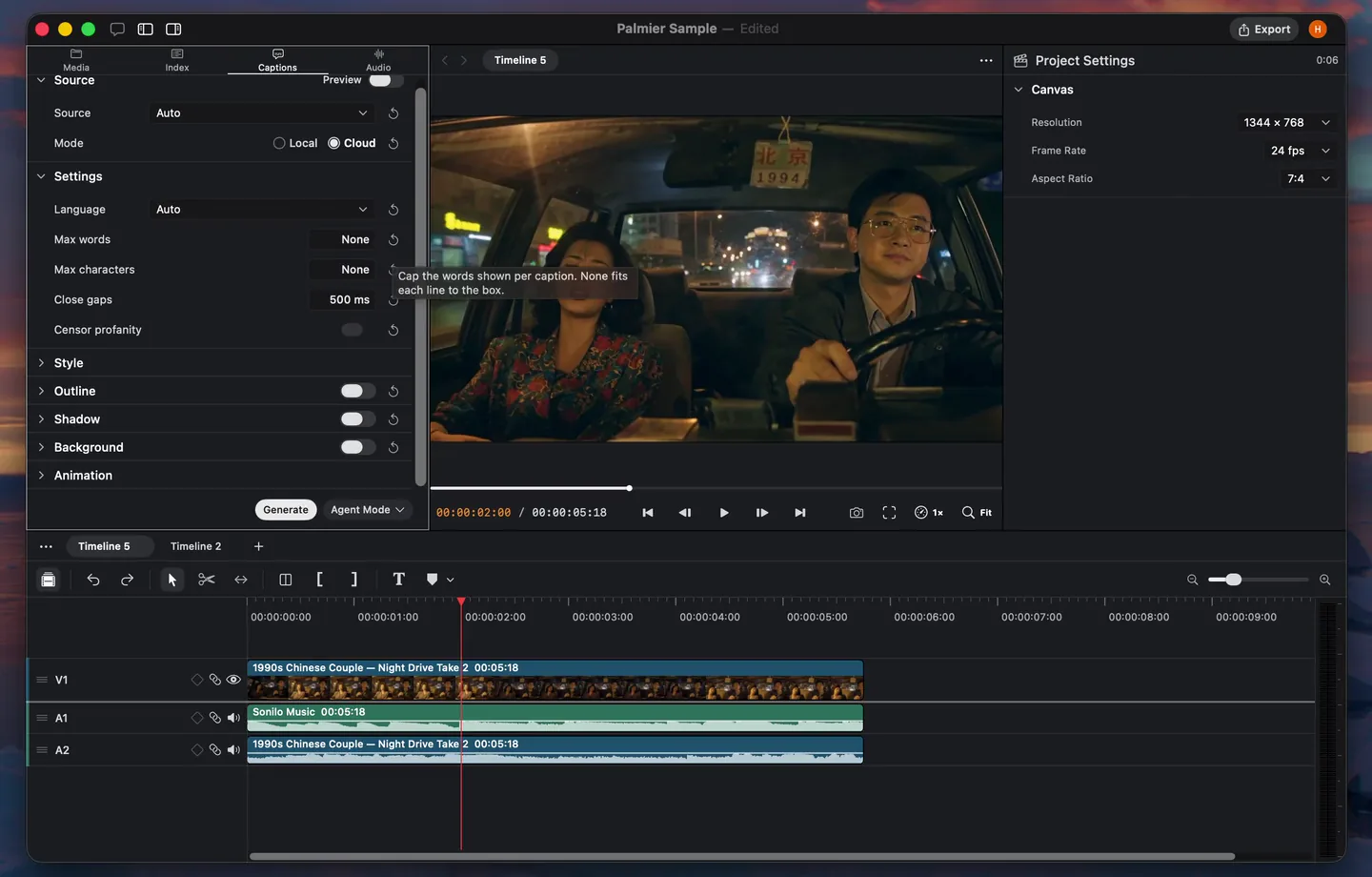
- Choose Auto, selected clips, or a specific audio track as the source.
- Turn on Preview to see the current style over the canvas.
- Choose the language when local transcription needs one.
- Set the maximum words or characters shown in each caption.
- Adjust the gap setting to hold captions across short pauses.
- Style and position the captions.
- Select Generate. New captions go on the existing caption track when they fit in its empty space; otherwise Palmier adds a new caption track.
Captions in the same group share one style. Updating the group applies the change across all of its caption clips.
To caption only part of a timeline, select a range on the ruler before generating. The Captions tab shows the selected range and limits the generated clips to it.
Import subtitles
Palmier Pro supports SRT and WebVTT subtitle files.
Import the subtitle file into the media library, then drag it onto the timeline. Palmier creates caption clips at the authored timecodes and keeps the file's text and timing.
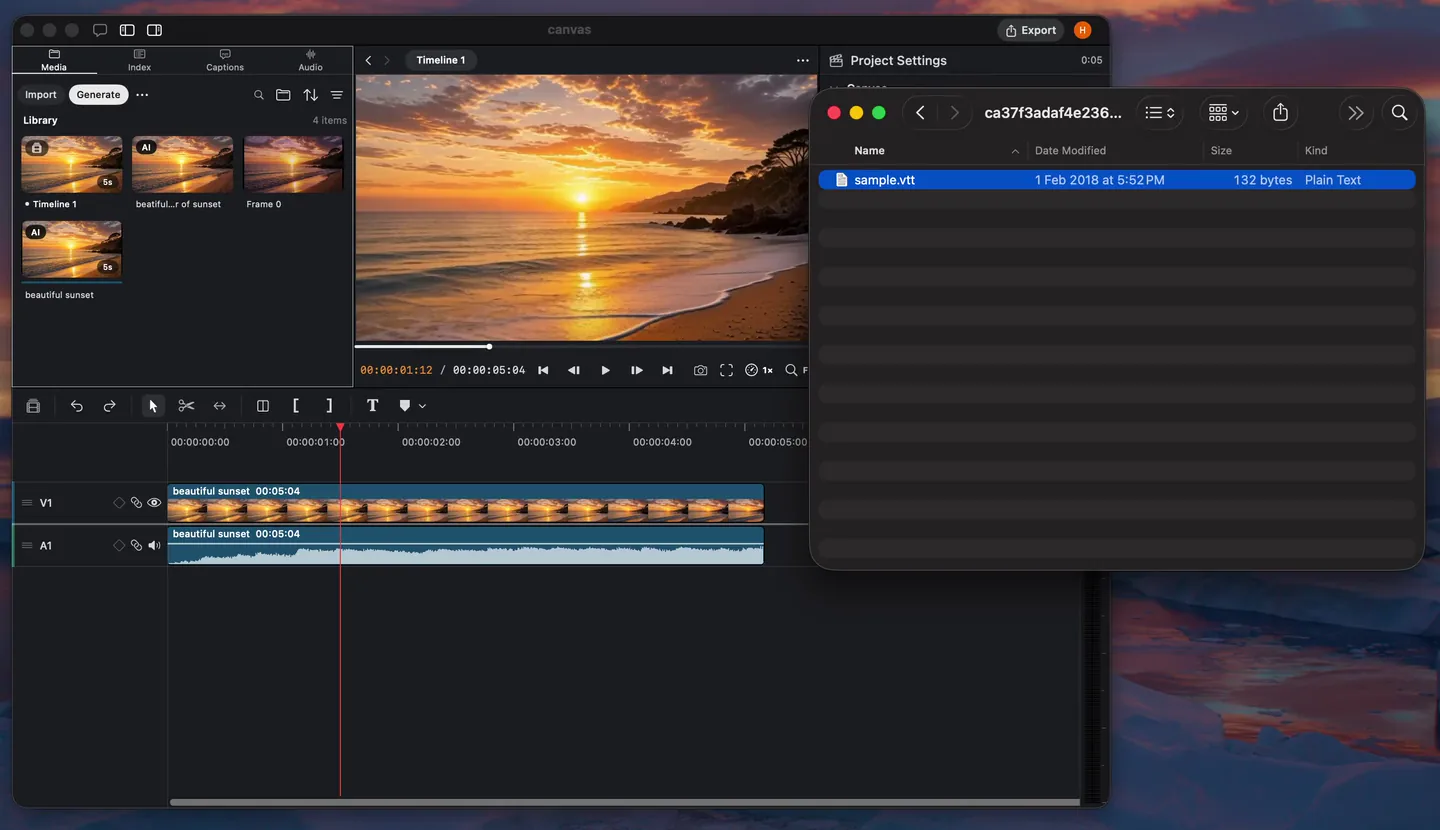
If subtitle cues overlap, Palmier trims the overlap so caption clips do not collide on the same track.
Transcript Index
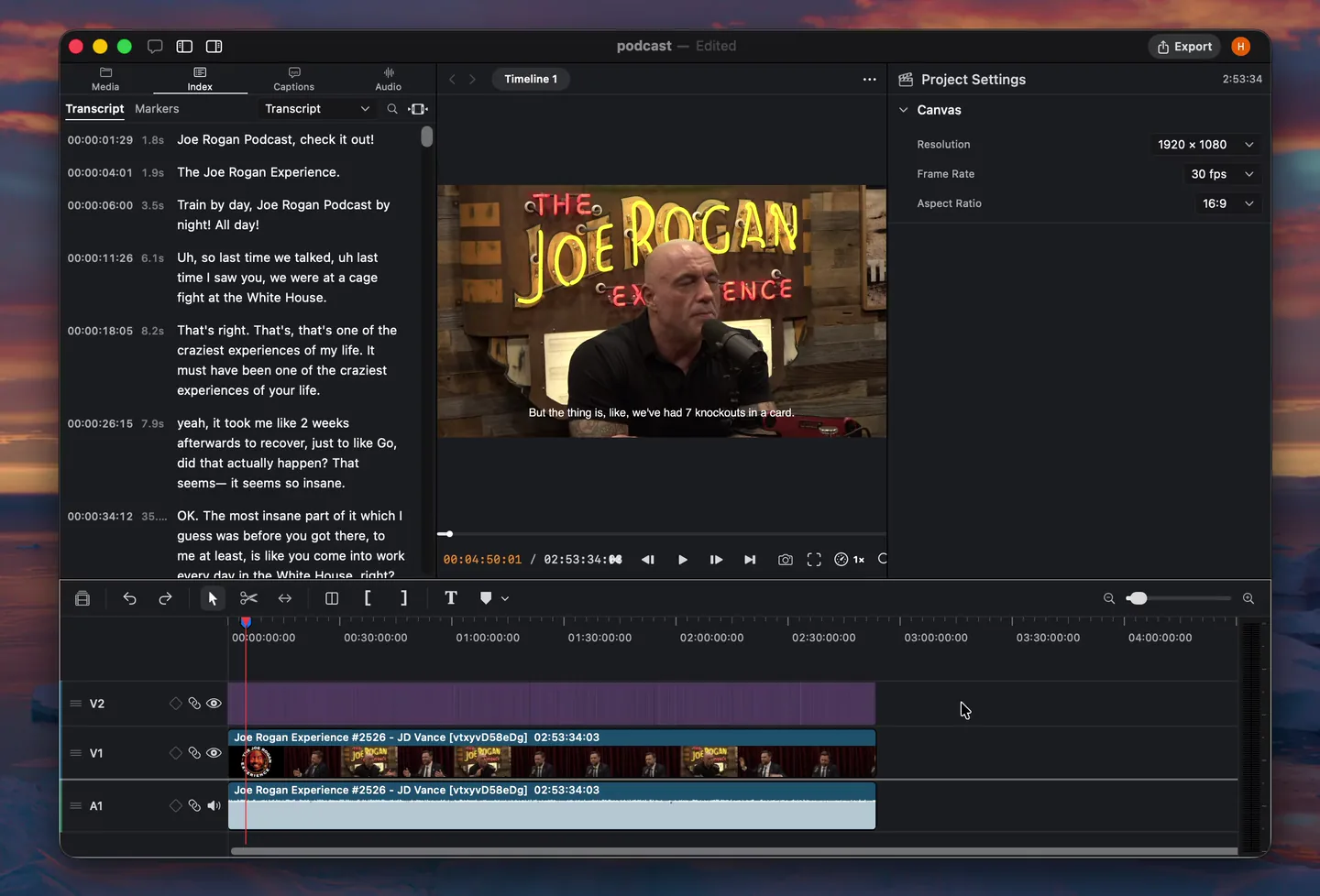
Open the Index tab, then choose Transcript to navigate the timeline by spoken content.
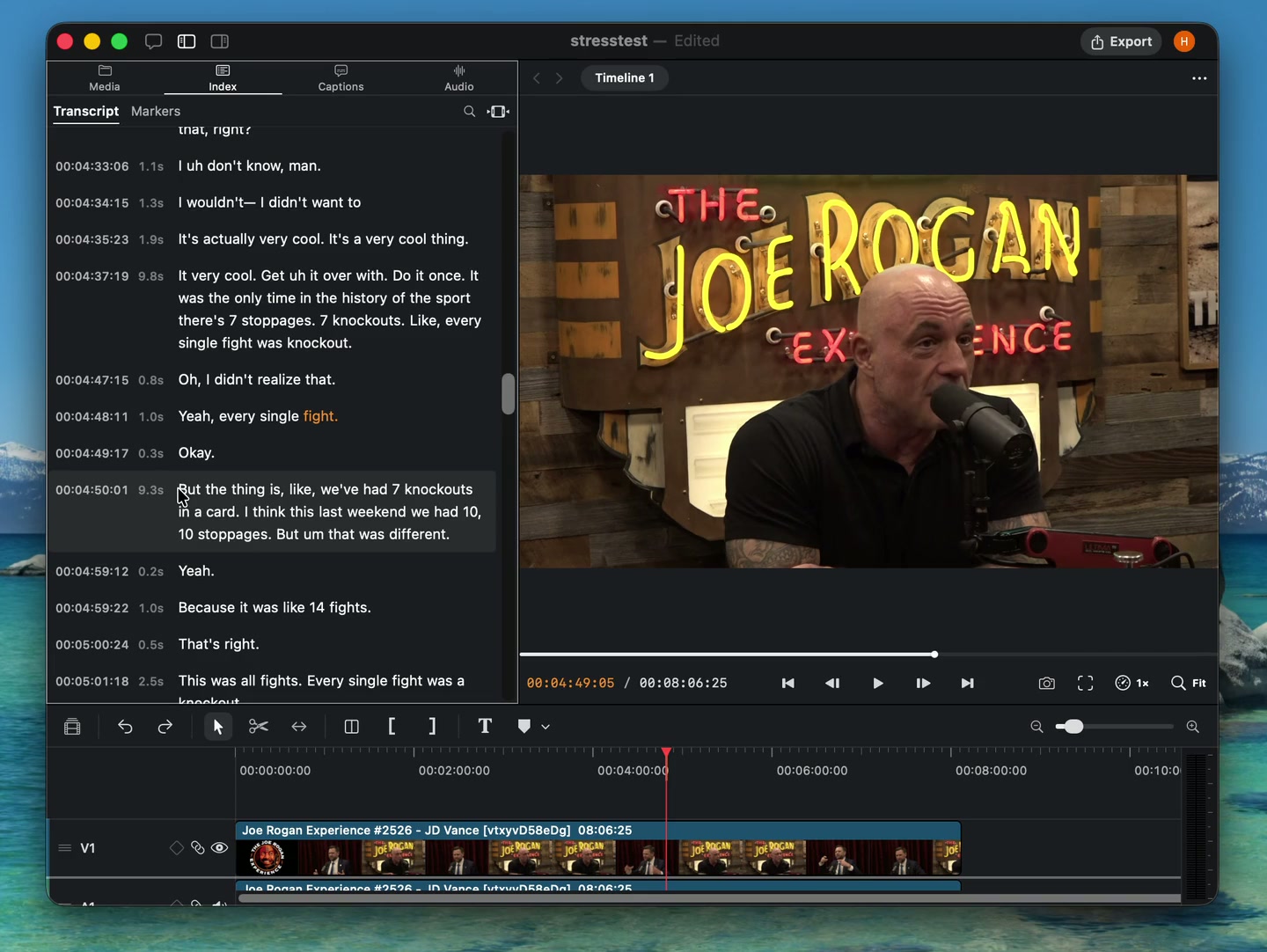
- Use the source menu to switch between the original transcript and existing caption tracks.
- Browse spoken words and jump directly to the matching moment.
- Select a transcript row to move the playhead to that section.
- Select words to create a timed range, then press M to add a comment.
- Switch to Comments in the same tab to review notes and Agent tasks.
If the timeline has not been transcribed yet, create a transcript from the empty state before using the index.