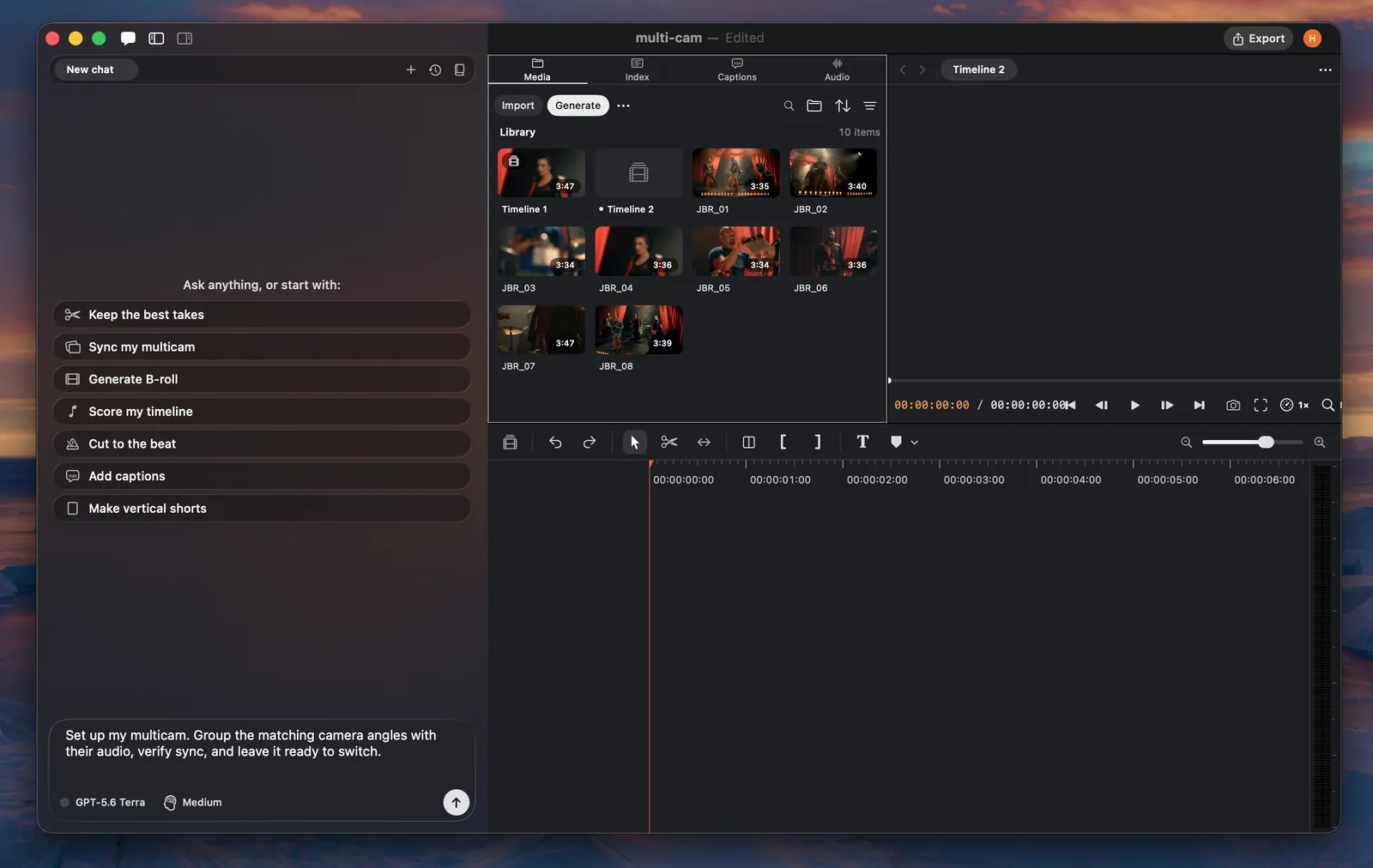
Multicam in Palmier is mainly driven by Agent. Describe how the cameras and microphones were recorded, choose a sync method, and explain the cut you want.
Workflow
Session
Tell Agent which media belongs to the same recording session. Identify the camera angles, external microphones, and any camera audio that should only be used for synchronization.
Clear labels help Agent build a group that is easy to review:
- Main camera
- Guest camera
- Wide shot
- Host microphone
- Guest microphone
Sync
Ask Agent to synchronize the session by audio, timecode, or automatically.
- Audio: Matches the sound recorded by each camera and microphone.
- Timecode: Aligns sources from their embedded source timecode.
- Auto: Uses timecode when it is available and falls back to audio.
Audio sync works best when every source captured the same clear speech, clap, or other sharp sound.
Assembly
Agent synchronizes the sources, creates a multicam group, and adds the group to the timeline. The result includes a program video track and separate audio tracks for the microphones used in the mix.
You can also ask Agent to create a rough cut while assembling the group. Describe when it should switch angles, which shots should be preferred, and which microphone should remain active.
Review
Play a section with clear speech or a sharp sound before refining the camera cut. Check lip sync and listen for echoes between microphones.
If one source is offset, ask Agent to rebuild the group with a pinned offset or a different sync method.
Fine-tuning
After Agent creates the multicam group, you can make detailed changes from the timeline.
Stay in sync
Palmier keeps every clip in a multicam group synchronized. It blocks dragging one group clip independently and prevents trims or timing changes that would move a member out of sync.
You can still change camera angles, layouts, and microphone assignments. When you need to edit the clips independently, right-click a group clip and select Ungroup Multicam. The clips stay on the timeline, but Palmier no longer keeps them synchronized as a group.
Camera
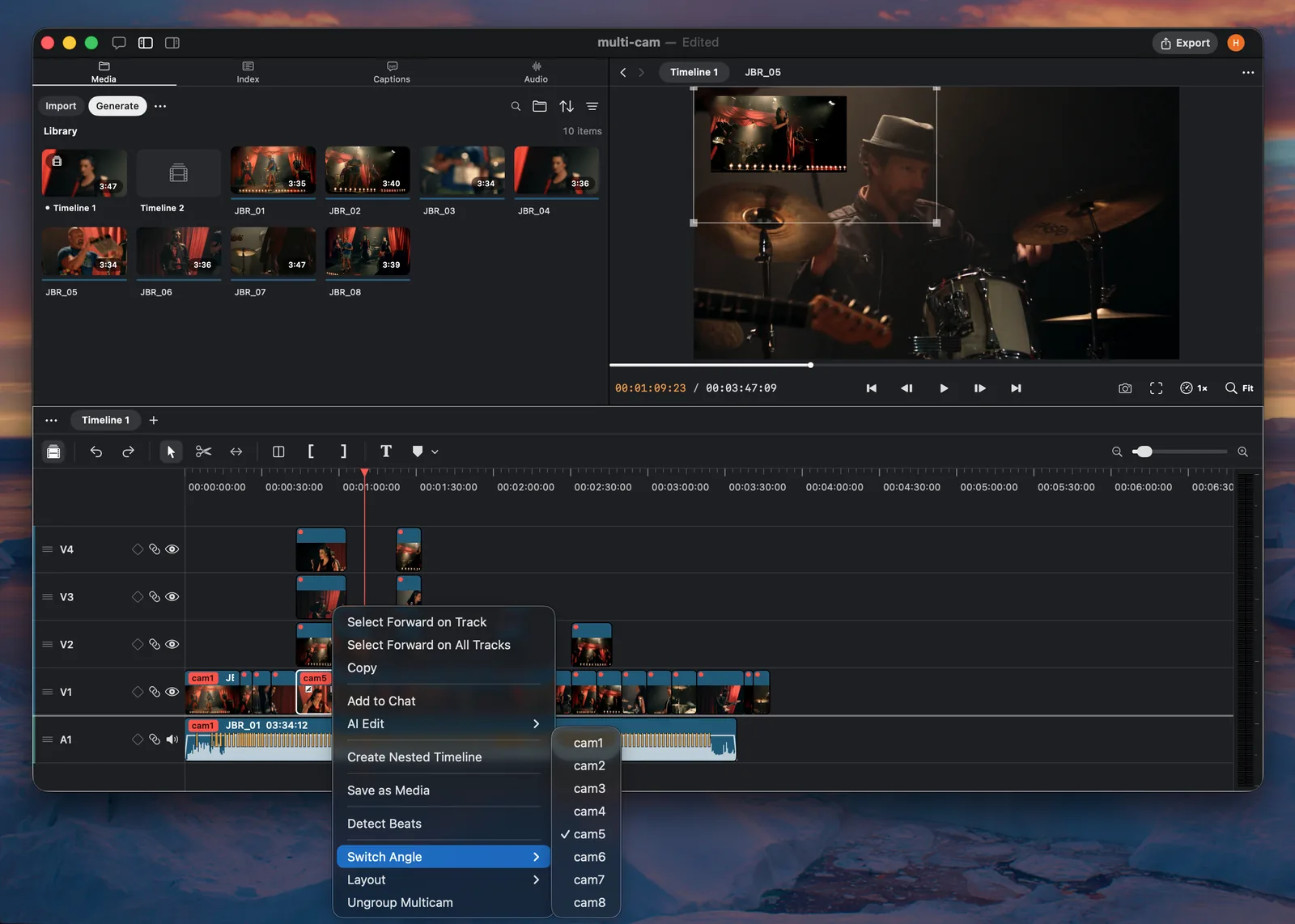
Select a timeline range and change the active camera. The range updates without moving the synchronized source media.
Layout
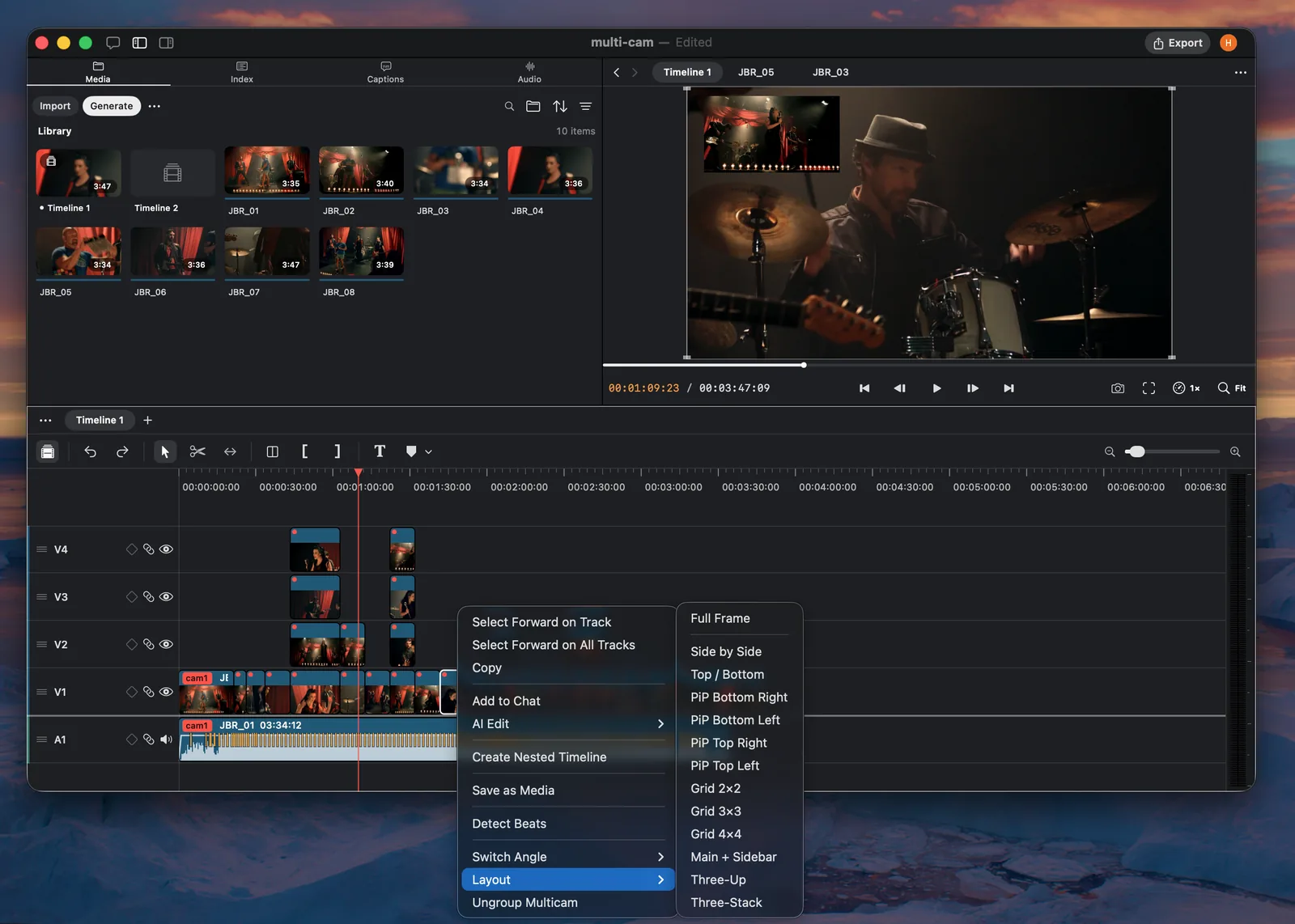
Show several angles at once with picture-in-picture, split screen, sidebar, or grid layouts. Switch back to a full-frame angle when the multi-angle layout is no longer needed.
Microphone
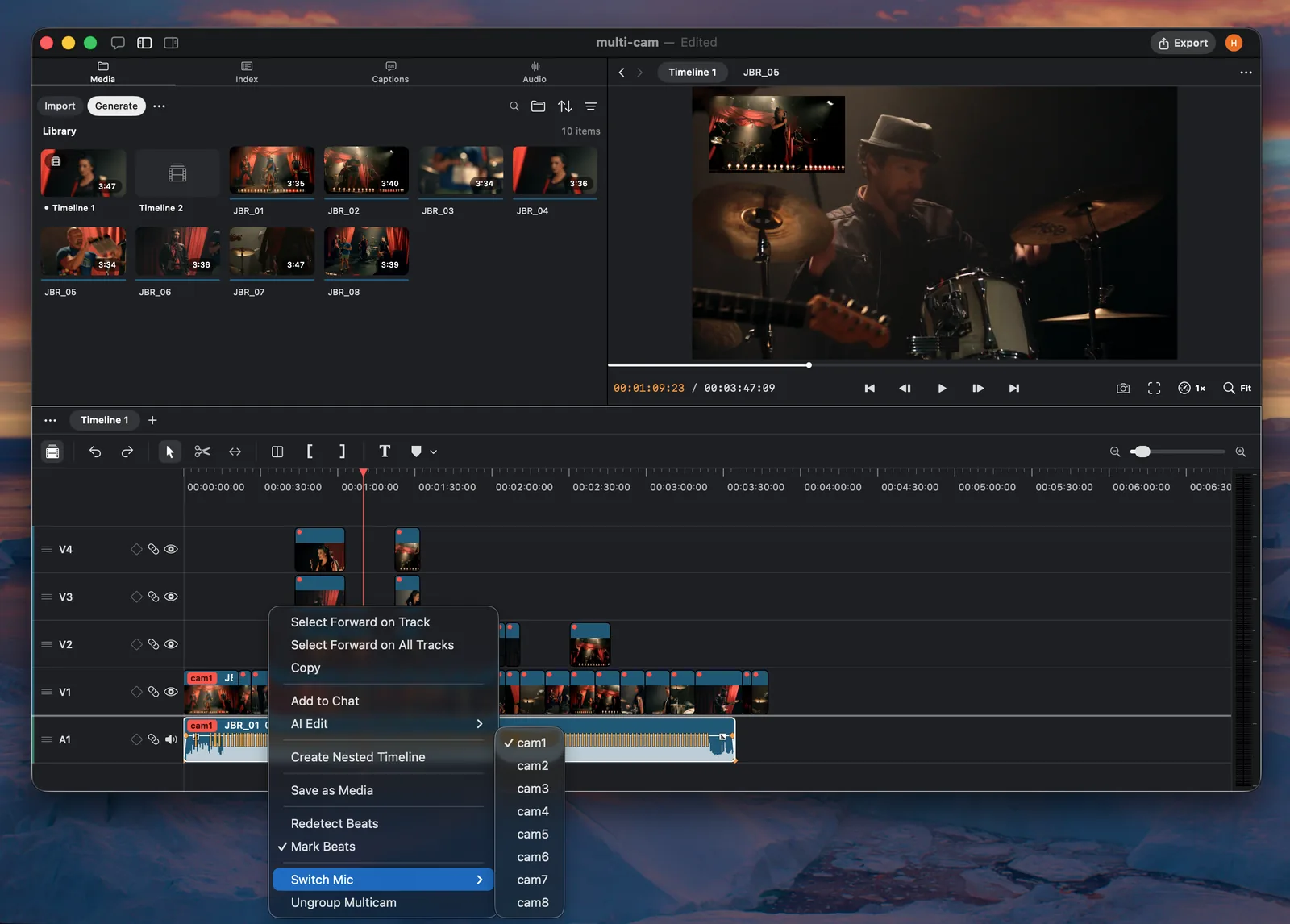
Mute, unmute, or adjust the microphone tracks used in the mix. Keep camera scratch audio muted unless it is needed for the final edit.
Rough cut
Review speaker changes, reaction shots, pauses, and interruptions. Adjust any cuts that feel too mechanical or happen before the speaker finishes a thought.
Use cases
Podcasts
Sync host, guest, wide, and microphone sources. Ask Agent to create a rough cut that switches to the person speaking, then refine reaction shots and moments where people speak over each other.
Multiple angles
Alternate between wide, medium, and close-up angles to make a single-speaker video feel more dynamic. Use split screen or picture-in-picture when two angles help explain the moment.
Interviews and panels
Sync interviewer, guest, panel, wide shot, and separate microphones. Agent can follow the active speaker while preserving a preferred wide shot for group reactions.
Screen and face camera
Combine a screen recording with a face camera for tutorials, product demos, courses, and gameplay. Switch between the screen, the presenter, and picture-in-picture layouts.
Events and performances
Sync several cameras to one master audio recording. Alternate between wide, close-up, and detail angles while keeping the clean master audio in the mix.