Prerequisites
Generative AI requires Palmier credits. First-time sign up grants 250 credits. After that, a Palmier subscription is required to access this feature.
To subscribe, go to App -> Settings -> Account -> Select a plan.
Agent
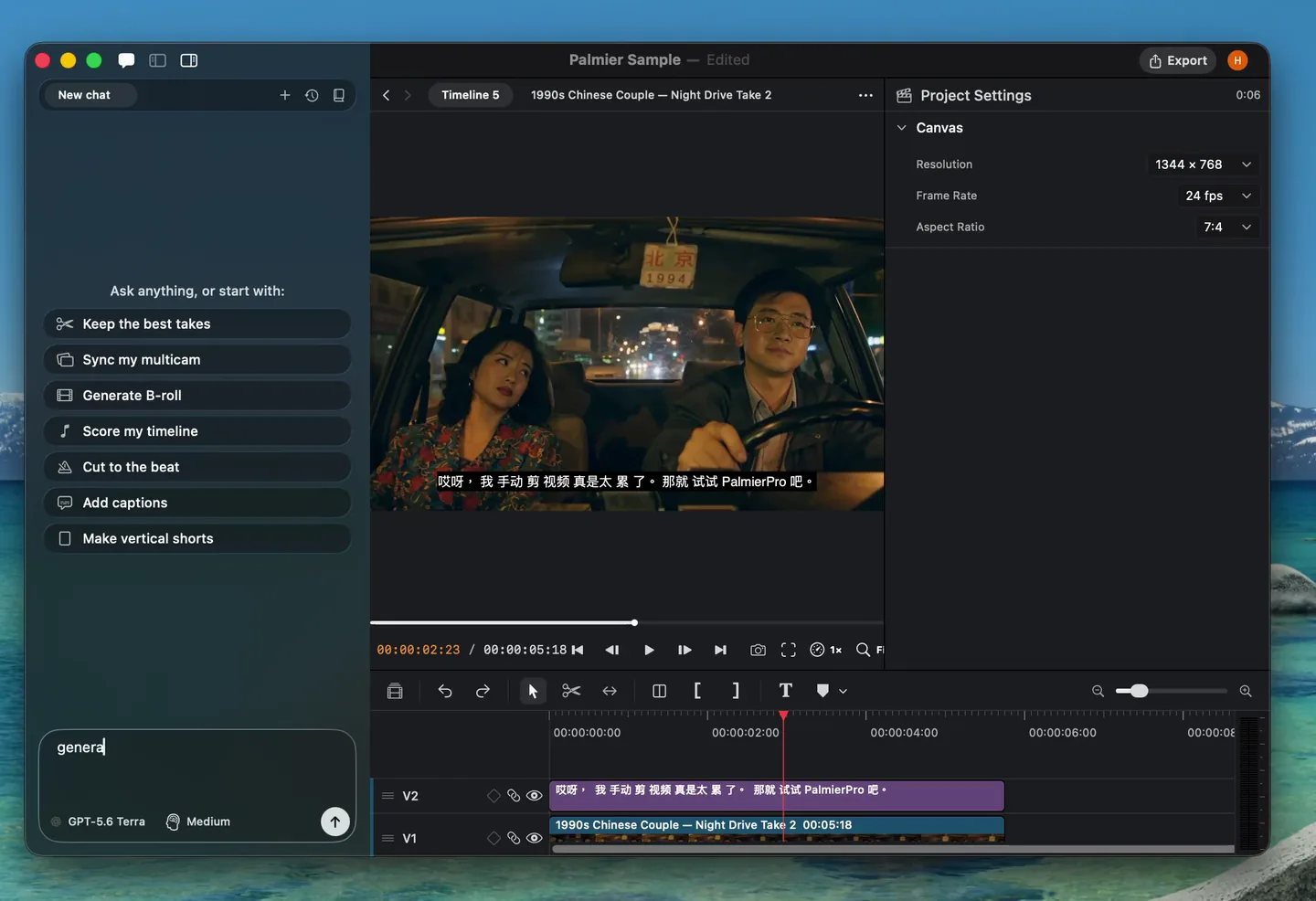
The MCP server and the in-app agent both have capabilities to generate media. The easiest and most intuitive way to generate something is simply prompt the agent. It will understand your request, and find the right models and prompt to generate the media.
User Interface
Generate Panel
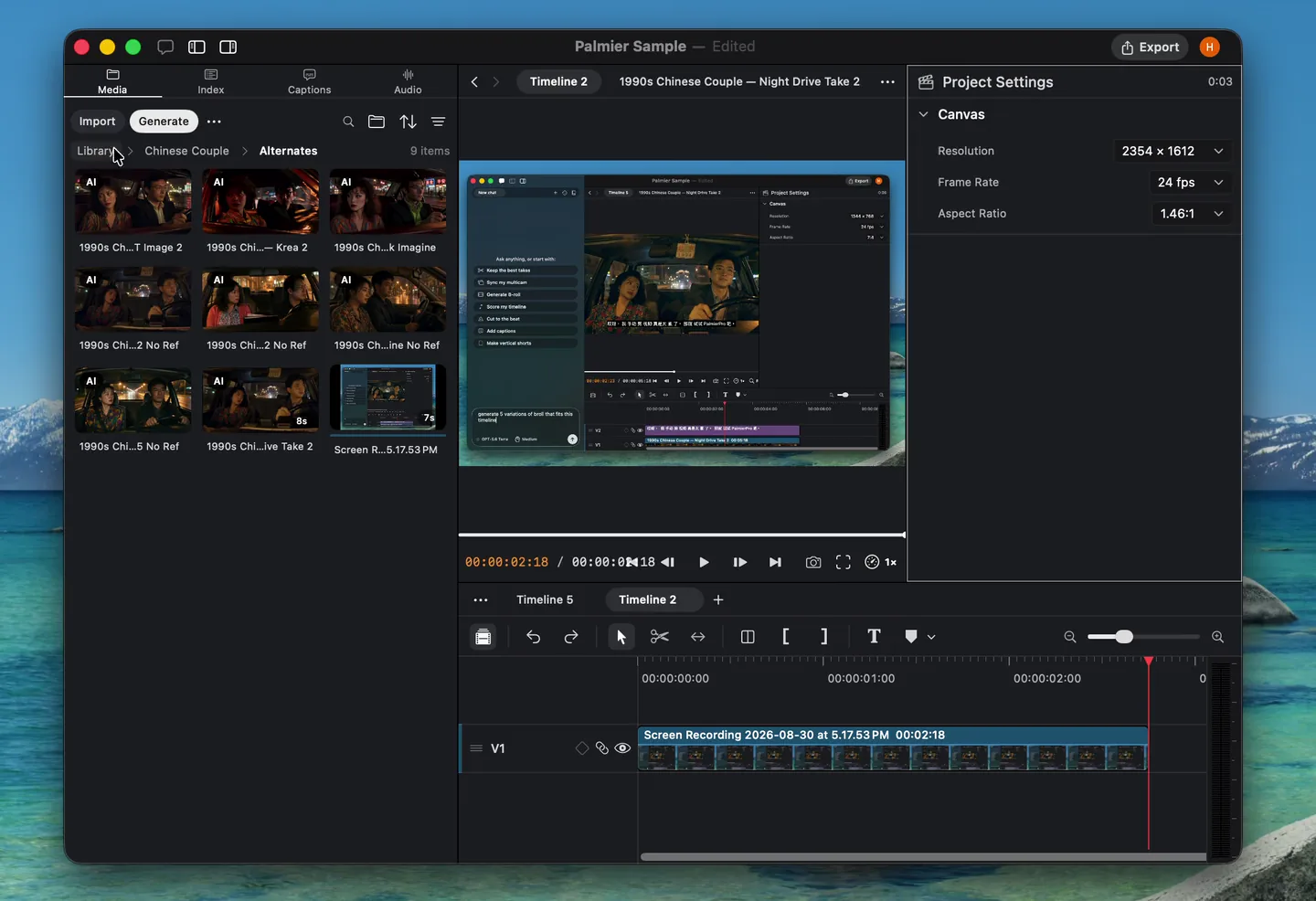
You can generate media directly in the media panel with more fine-grained control. In the media panel, click Generate to open the Generate Panel.
You can then switch between Image, Video, Audio, Upscale models, and configure the prompts and settings of each model.
Tip: Press ⌘2 to switch to the Media layout and give the Generate panel more vertical space.
Media and Inspector Panels
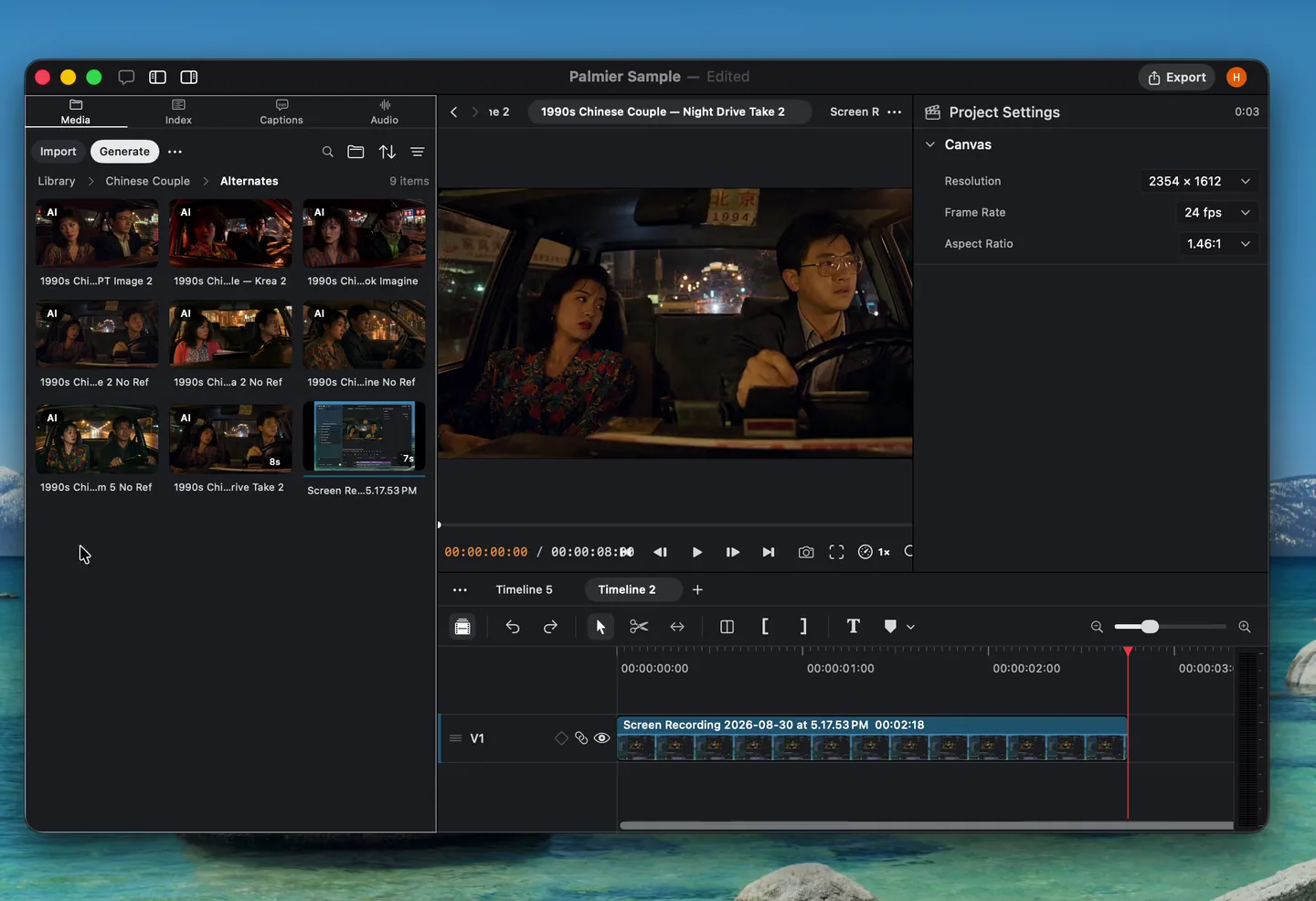
Select media to review its generation inputs and available AI actions in the inspector. You can also right-click an item in the media library to open the same actions.
Timeline
AI Edit
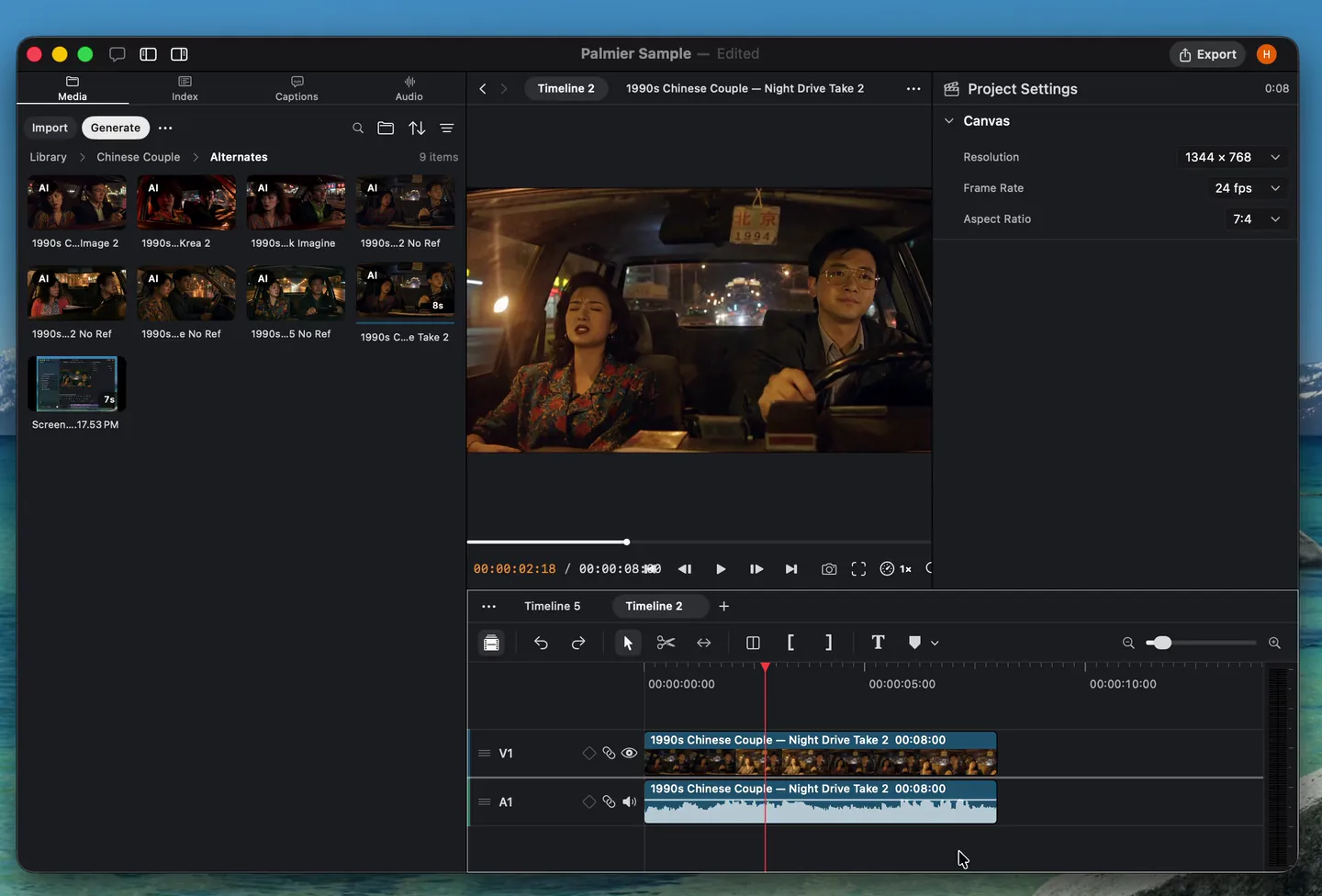
Select a timeline clip to use the same AI actions available for source media:
- Send only the visible trimmed range instead of the full source video.
- Replace the clip with the result while preserving its timing and properties.
AI Transition
Leave a gap between two clips on the same track, then right-click the gap and choose AI Transition. Palmier captures the surrounding frames and generates a transition that fits the available duration.
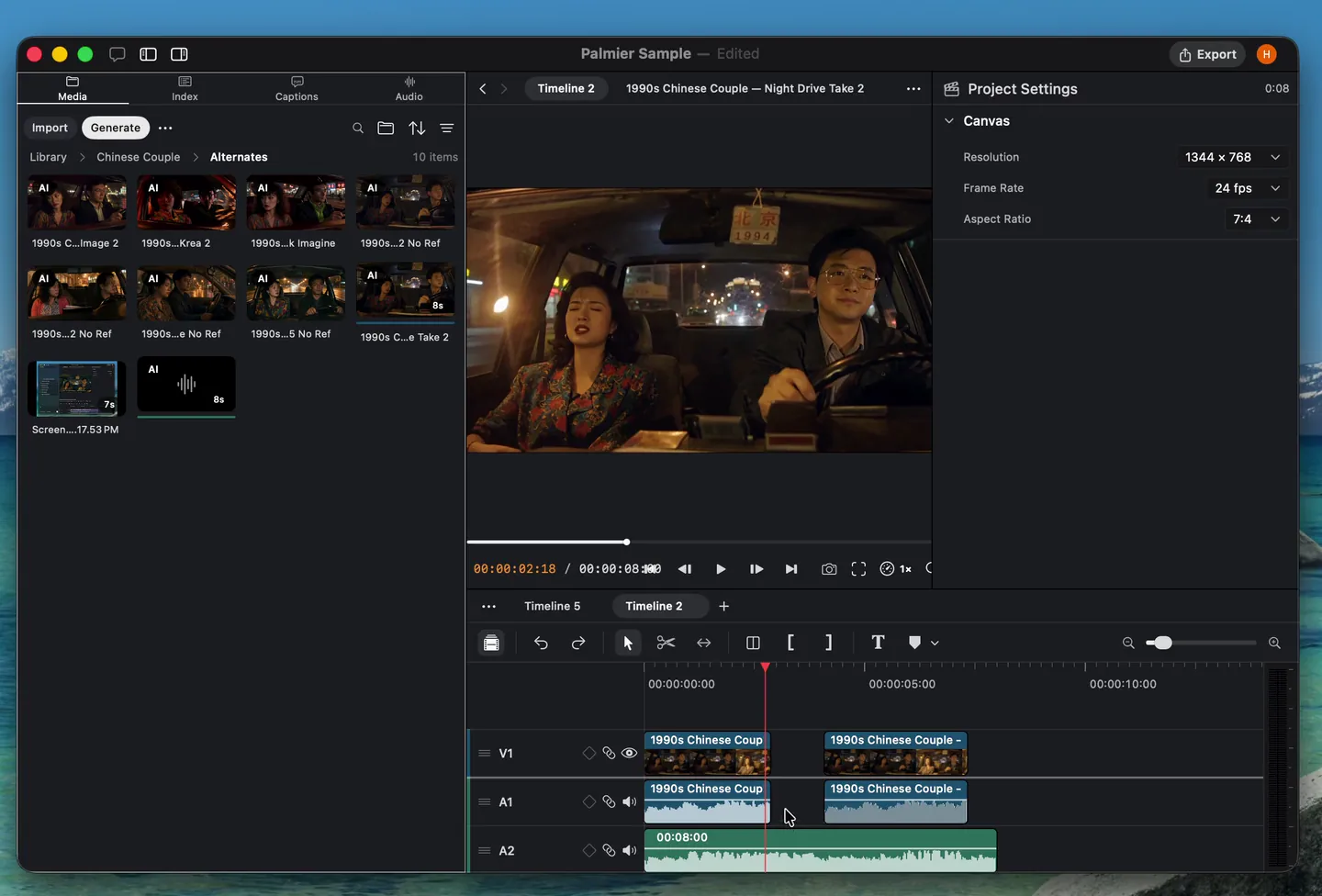
Timeline music
Open the Audio tab and choose a video-to-music model to score the active timeline. Palmier renders the edit, sends it to the model, and returns a matching music track up to 10 minutes long.
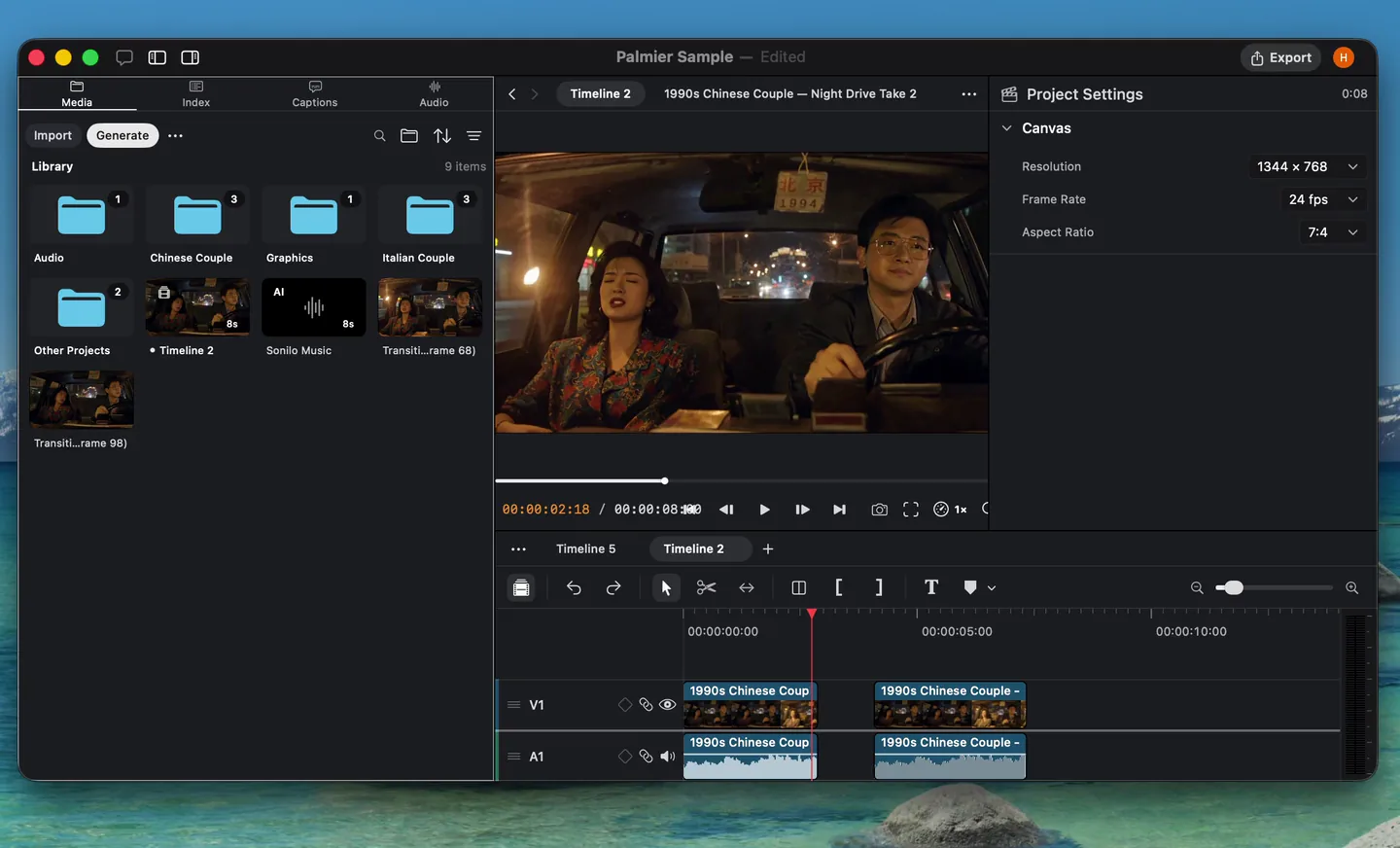
Image
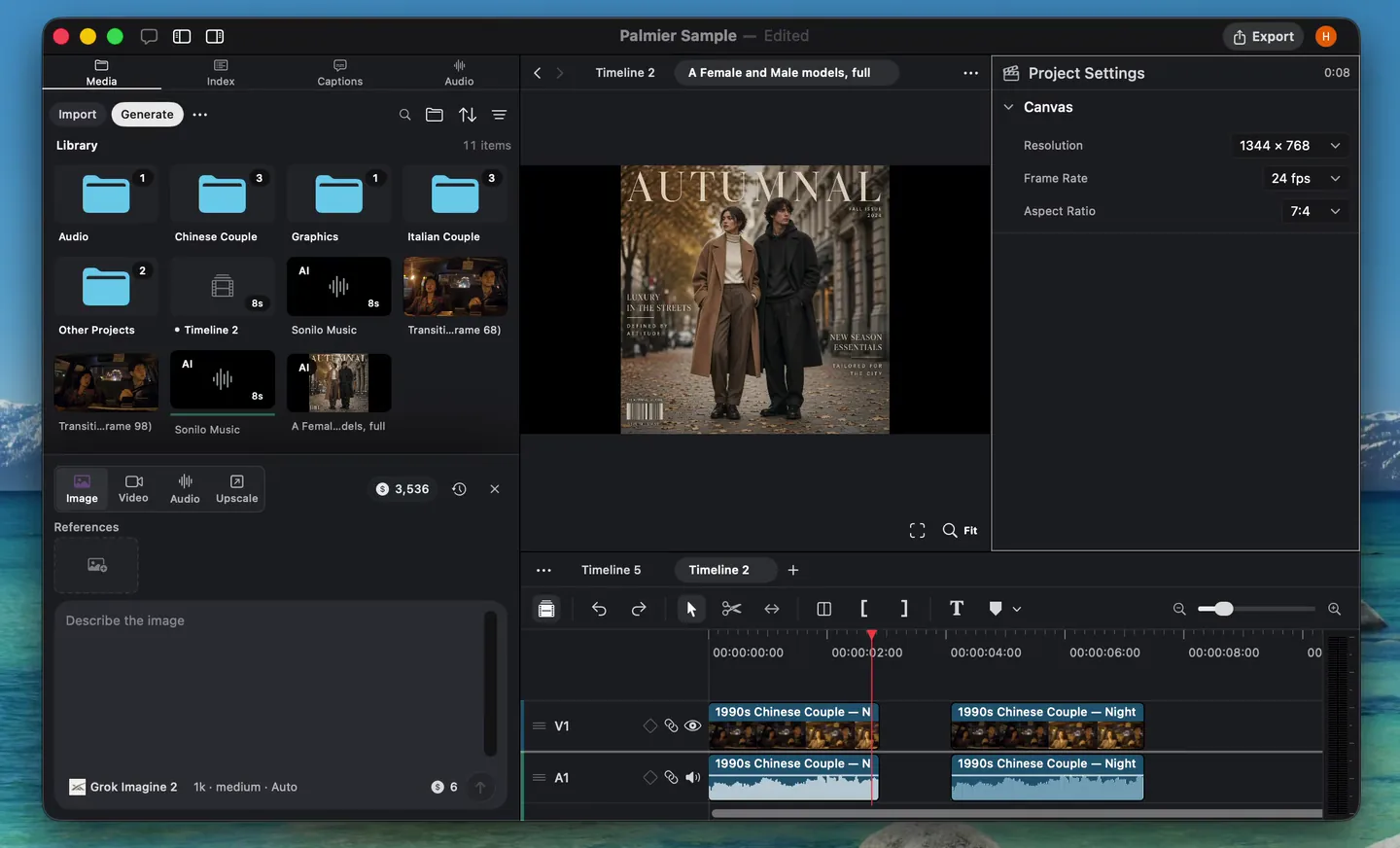
Text-to-image
Type a prompt in the Generate panel, then choose the resolution and aspect ratio. It usually helps to describe the subject, setting, framing, and visual style in one clear prompt.
The generated image will be added to your media library. From there, you can place it on the timeline, use it as a reference, or generate another version.
Image-to-image
Drag one or more images into the reference dropzone, then describe what you want to change. Be clear about what should stay the same, especially the subject, composition, or style.
Different models support different numbers of image references. The Generate panel will update based on the model you select.
Video
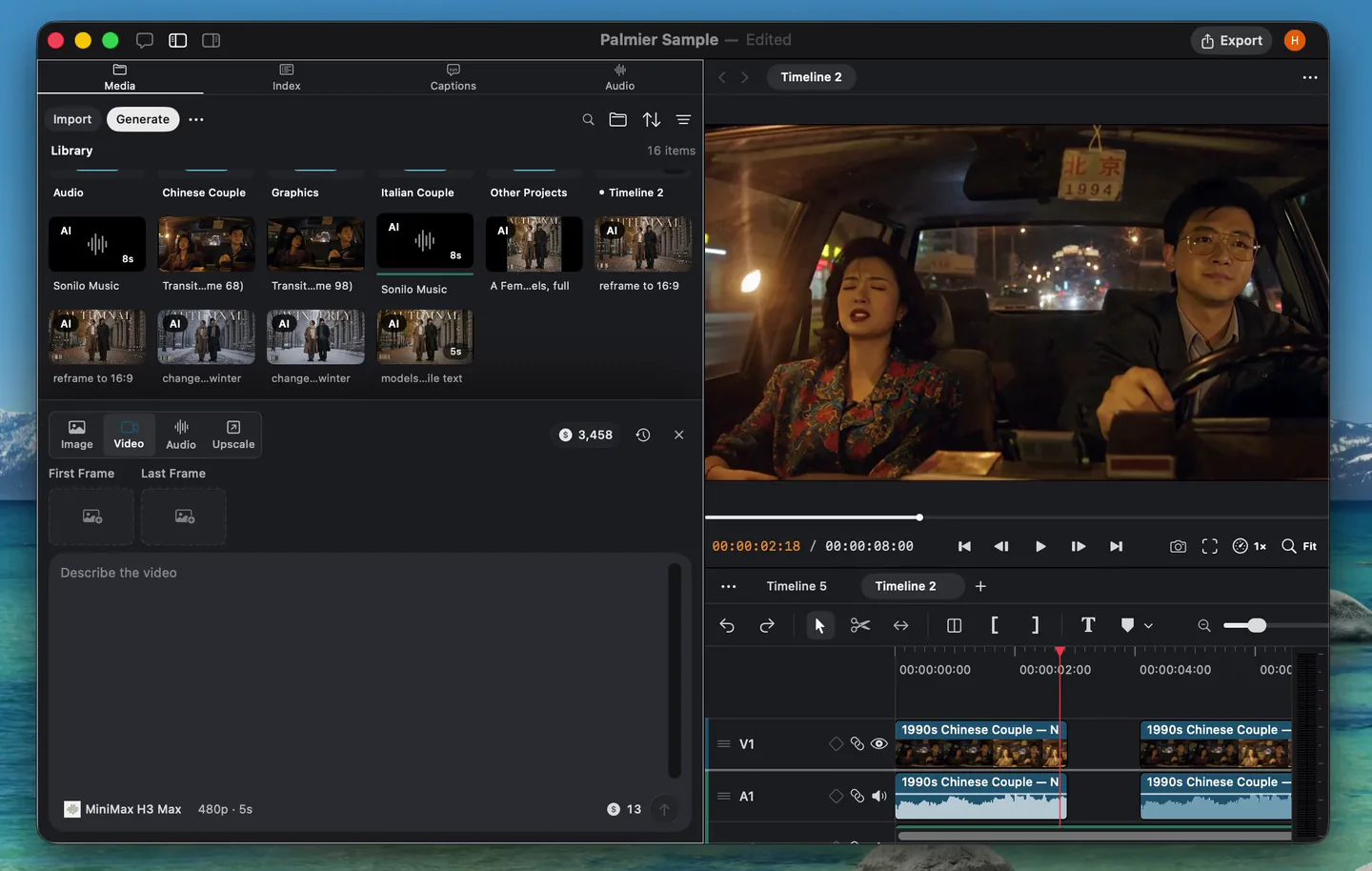
Text-to-video
Type a prompt, then choose the duration, resolution, and aspect ratio. Text-to-video works well when you care more about the motion or idea than a specific first frame.
Describe the camera movement, subject action, dialogue, sound effects, and music you want in the result.
Image-to-video
Drag an image into the first-frame dropzone to define how the video starts. This is the most reliable way to control the subject, composition, and overall look of the shot.
Some models also support a last frame. Add one when you want the shot to arrive at a specific composition or connect two existing shots.
Reference-to-video
Some video models accept image, video, and audio references. Drag the supported media into the reference dropzones, then refer to them in your prompt.
Use references when you need to preserve a character, product, visual style, movement, or sound across multiple generations.
Video edits
- Video-to-video: Transform an existing video from a prompt. A timeline clip can send only its visible trimmed range.
- Reframe: Adapt a video to a vertical, square, or wider composition while keeping the subject visible.
- Lip Sync: Pair a talking video with replacement audio. Most lip sync workflows do not need a prompt.
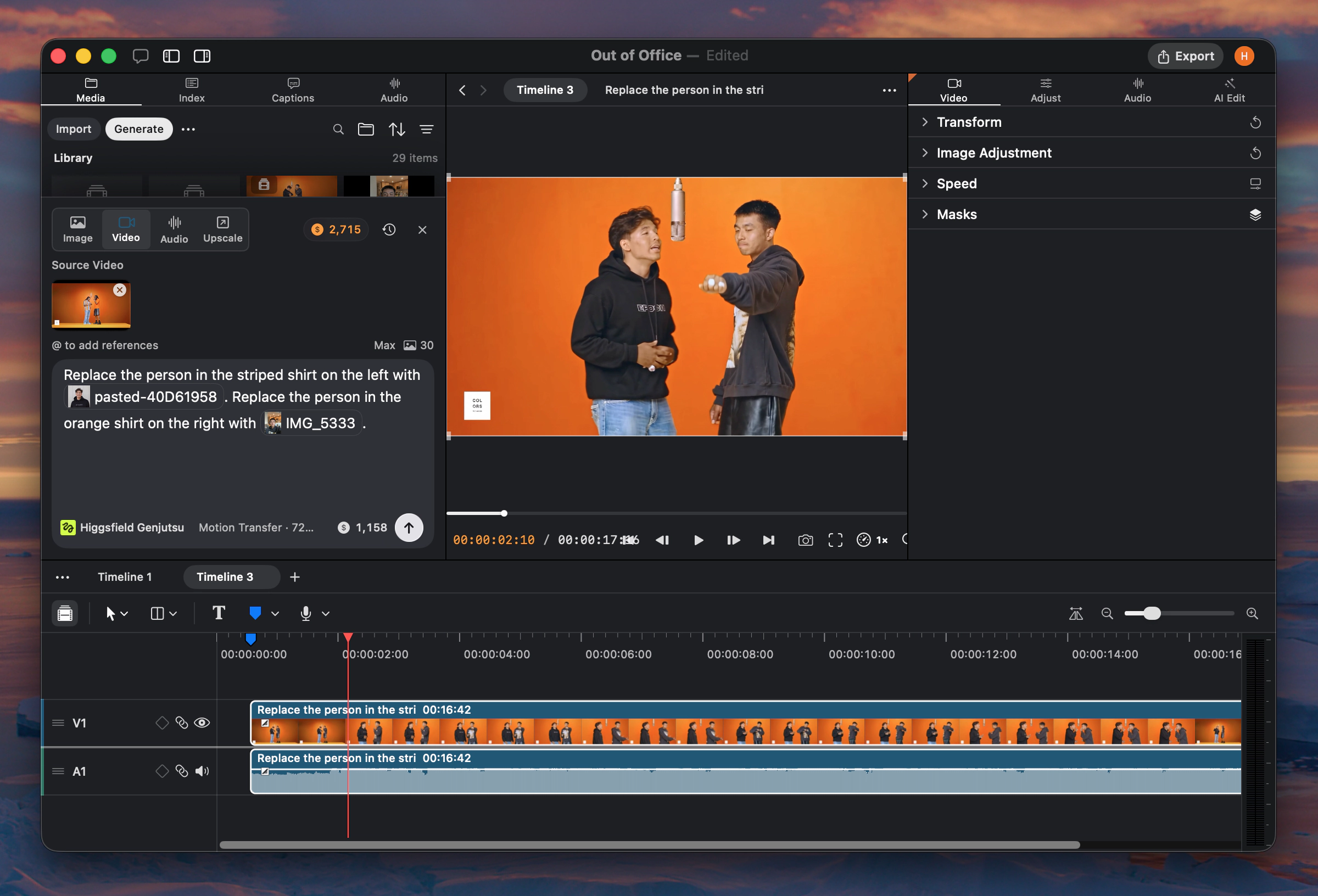
- Higgsfield Genjutsu: Choose Motion Transfer or Object Swap in the Generate panel and attach the source media as prompt references.
Audio
| Workflow | Use it for |
|---|---|
| Music | Generate a music bed from a prompt, lyrics, or the active timeline. |
| Speech | Turn an exact script into speech with a selected voice and delivery style. |
| SFX | Generate sound effects from text or a source video. |
| Dubbing | Translate spoken audio while preserving the source timing. |
| Voice Cleanup | Isolate speech from background audio without a prompt. |
Upscale
Upscaling creates a higher-resolution copy of an image or video. Choose a model and target resolution, then optionally change the video frame rate or process only a trimmed timeline range. Review the result before swapping or placing it.
References
Models
Image
| Model | Provider |
|---|---|
| GPT-2.5 Image | OpenAI |
| GPT Image 2 | OpenAI |
| Nano Banana Pro | |
| Nano Banana 2 | |
| Nano Banana Lite | |
| Grok Imagine 2 | xAI |
| MAI Image 2.5 | Microsoft |
| Muse Image | Meta |
| Krea 2 Large | Krea |
| Ideogram V4 | Ideogram |
| Seedream 5.0 Pro | ByteDance |
| Reve 2.1 | Reve |
| Recraft V4.1 | Recraft |
Video
| Model | Provider | Frames | References | Video edit |
|---|---|---|---|---|
| MiniMax H3 | MiniMax | First + last | Yes | No |
| MiniMax H3 Max | MiniMax | First + last | No | No |
| Seedance 2.5 | ByteDance | First + last | Yes | No |
| Seedance 2 | ByteDance | First + last | Yes | No |
| Seedance 2 Fast | ByteDance | First + last | Yes | No |
| Seedance 2 Mini | ByteDance | First + last | Yes | No |
| Wan 3.0 | Alibaba | First + last | Yes | No |
| Wan 3.0 Prime | Alibaba | First + last | Yes | No |
| Happy Horse | Alibaba | First only | Yes | No |
| Happy Horse Edit | Alibaba | No | Yes | Yes |
| FLUX.3 | Black Forest Labs | First + last | No | Yes |
| Gemini Omni Flash 1.1 | First + last | Yes | No | |
| Gemini Omni Flash 1.1 Edit | No | No | Yes | |
| Kling O3 | Kling | First + last | Yes | No |
| Kling V3 | Kling | First + last | Yes | No |
| Kling O3 Edit | Kling | No | No | Yes |
| Kling V3 Motion Control | Kling | No | Yes | Yes |
| LTX 2.5 Pro | LTX | First + last | No | No |
| Runway Aleph 2.0 | Runway | No | No | Yes |
| VEED Lip Sync v2 | VEED | No | Yes | Yes |
| Grok Imagine Video | xAI | First only | Yes | No |
Audio
| Model | Category |
|---|---|
| ElevenLabs Dubbing | Dubbing |
| Seed Audio 1.0 | General |
| ElevenLabs Music | Music |
| Lyria 3 Pro | Music |
| MiniMax Music 2.6 | Music |
| Sonilo Music | Music |
| ElevenLabs Sound Effects | Sound effects |
| Mirelo SFX v1.5 | Sound effects |
| Sonilo Sound Effects | Sound effects |
| ElevenLabs v4 TTS | Text to speech |
| Gemini 3.1 Flash TTS | Text to speech |
| ElevenLabs Voice Isolator | Voice cleanup |
Upscale
| Model | Media |
|---|---|
| Topaz Upscale | Video |
| Topaz Upscale | Image |
| Bytedance Upscaler | Video |
| SeedVR2 | Video |
| SeedVR2 | Image |
| FLUX Video Upscale | Video |