Overview
Palmier is a video editor built for AI agents. The app exposes a set of tools that allow agents to read and edit your video projects.
There are two ways to work with an agent in Palmier: use the in-app Agent or connect an external agent through the local MCP server.
The in-app Agent is designed for human review and back-and-forth iteration. The MCP server is best for integrating video editing into existing workflows and automations, including Claude Desktop, Cursor, and other clients. Both approaches share the same editing instructions and tools.
MCP Server
An MCP (Model Context Protocol) server exposes application tools to an LLM. While Palmier Pro is open, it runs a local MCP server that lets connected agents read and edit your Palmier projects.
Connect to Claude Desktop
Palmier Pro includes an MCP Bundle (MCPB) that connects Claude Desktop to the local server with a few clicks.

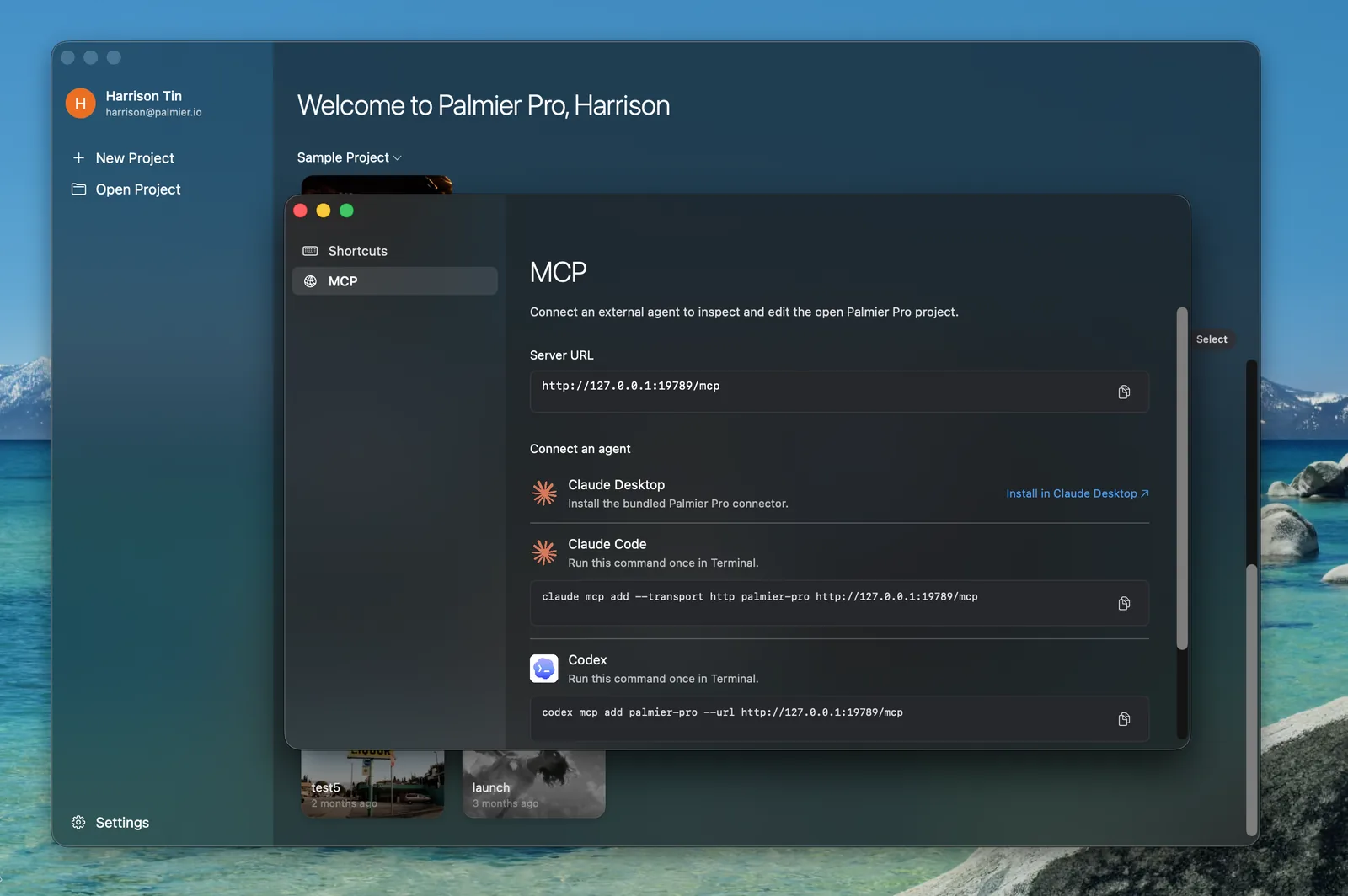
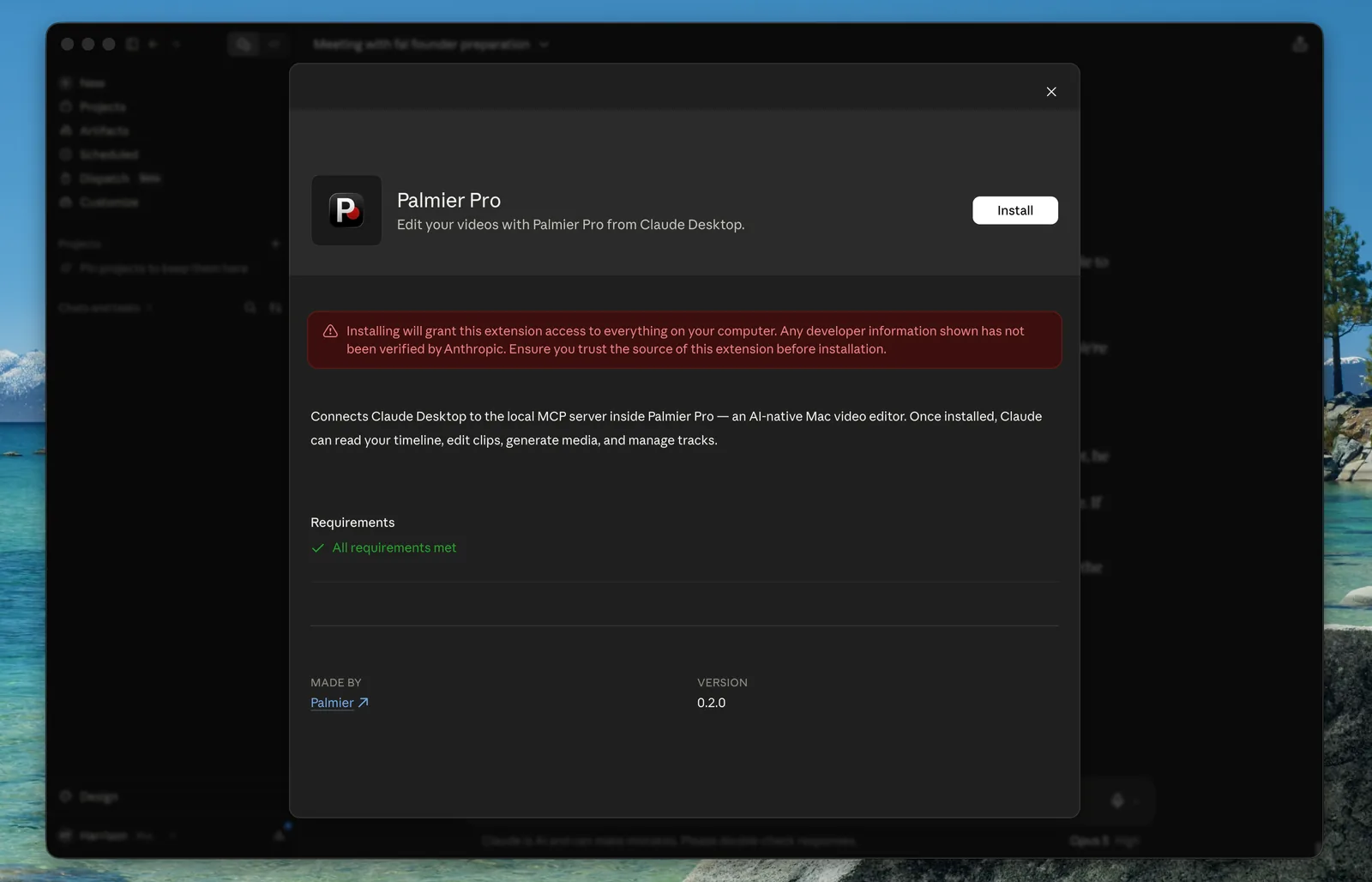
The red warning appears because Anthropic has not yet verified the connector. The connector can access your Palmier project files, but it does not have access to everything on your computer.
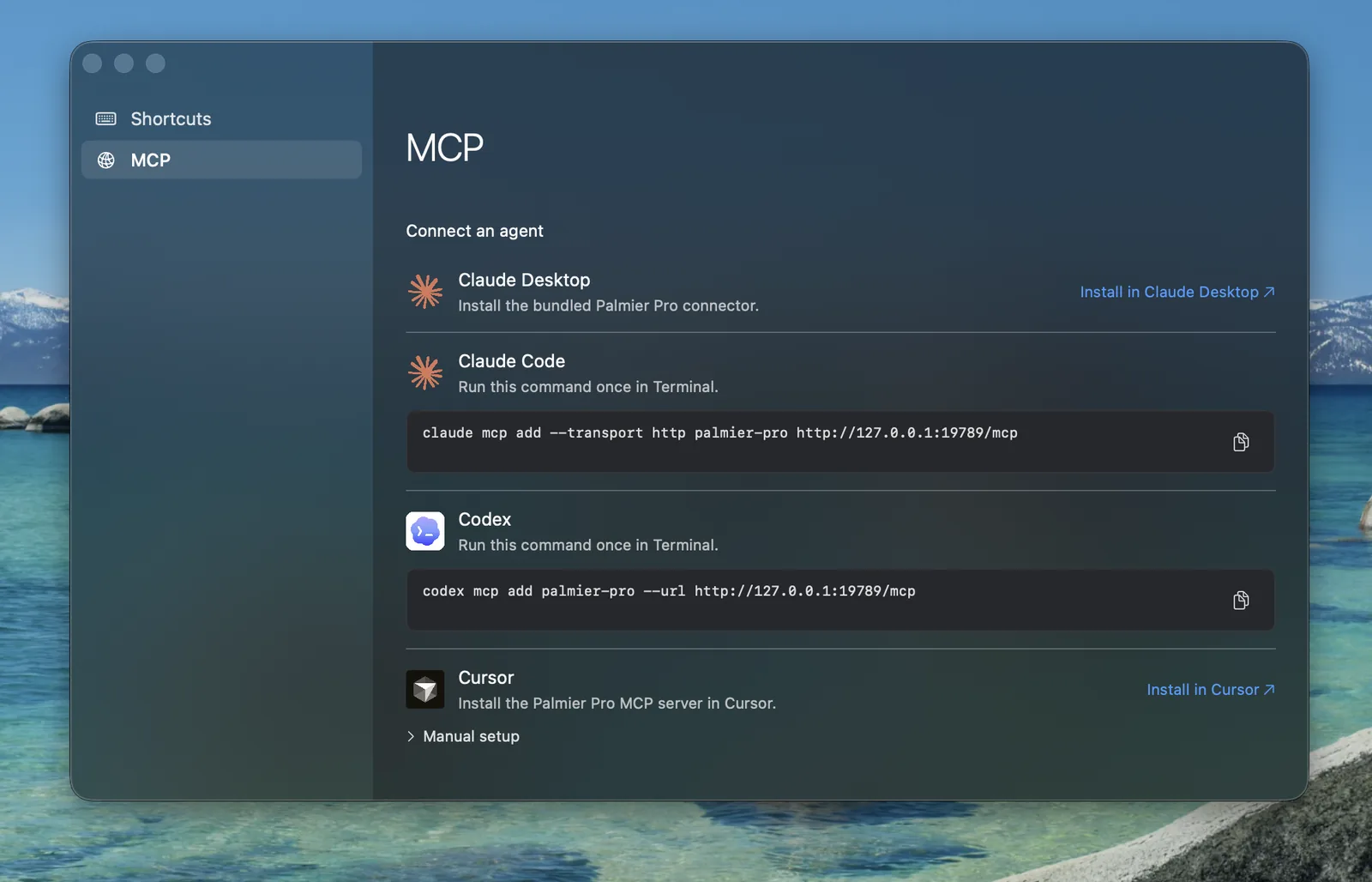
Connect to Claude Code
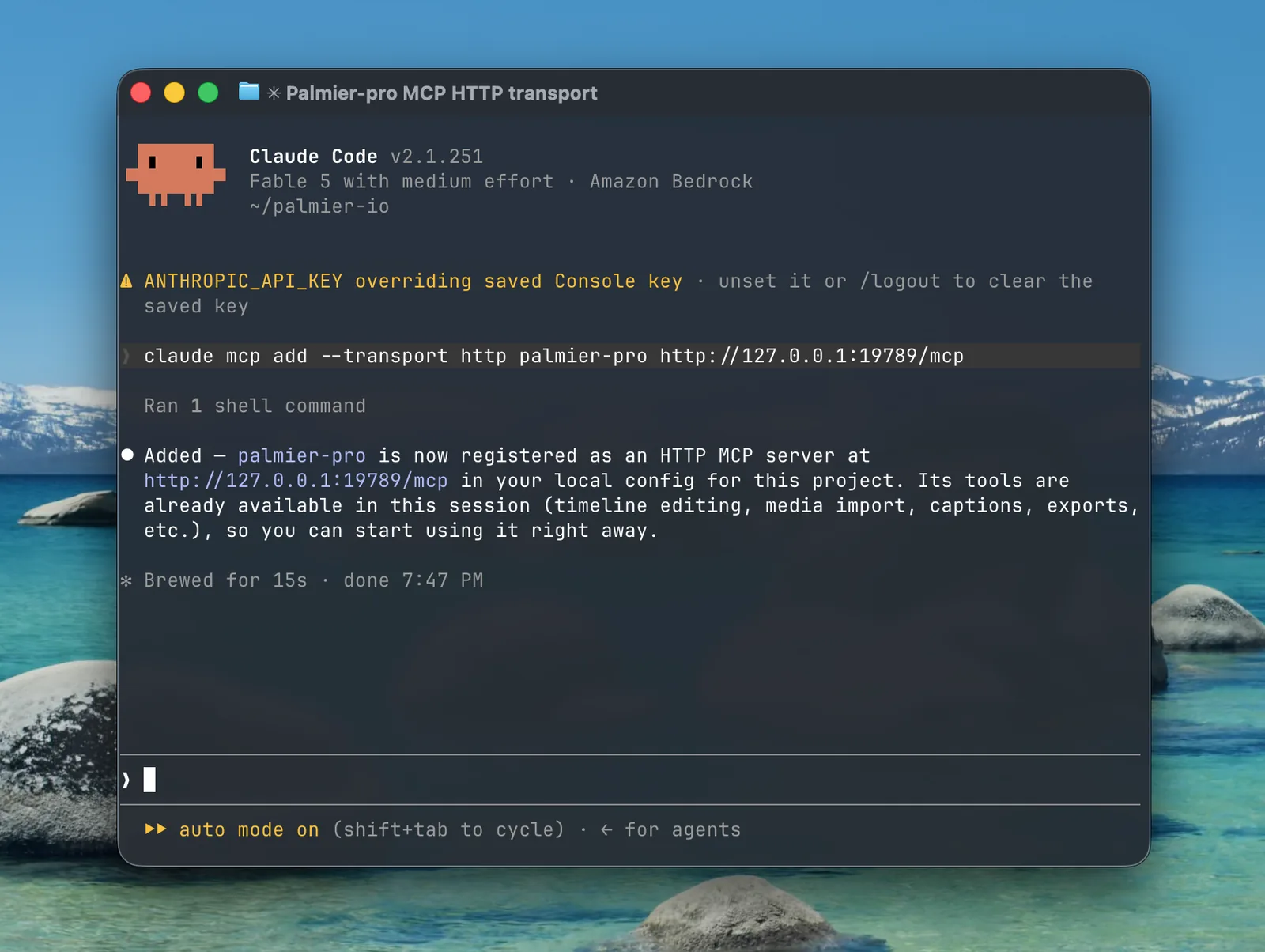
Run the following command in your terminal:
claude mcp add --transport http palmier-pro http://127.0.0.1:19789/mcp
Connect to Codex
Run the following command in your terminal:
codex mcp add palmier-pro --url http://127.0.0.1:19789/mcp
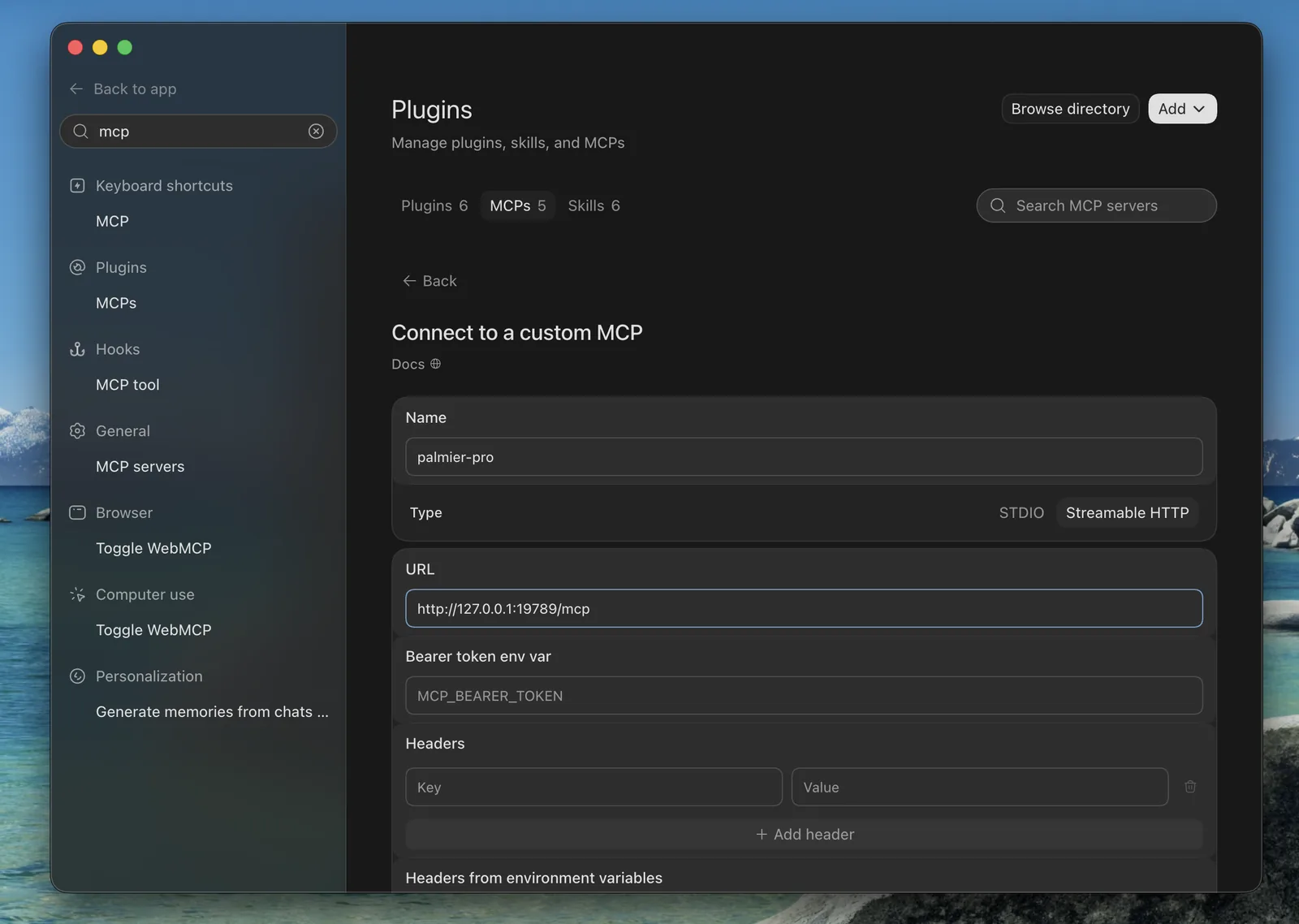
Or open the Codex app, go to Settings, choose MCPs, and create a custom Streamable HTTP server.
Connect to Cursor
In Palmier Pro, open Help, choose MCP Instructions, then select Install in Cursor.
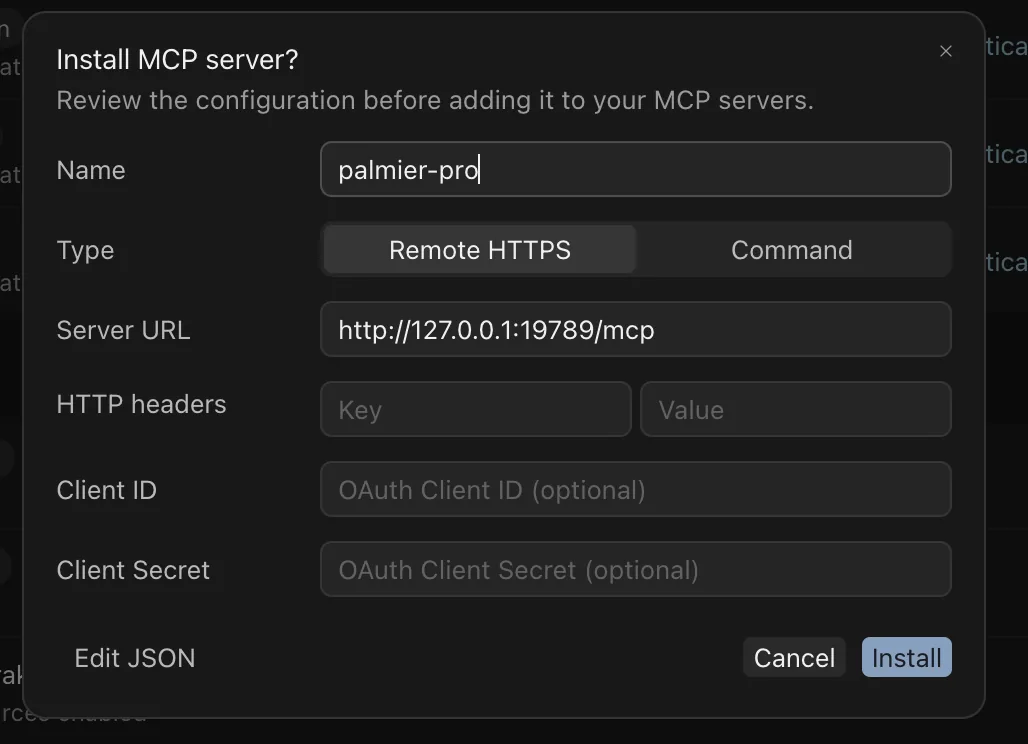
Or install manually by adding this configuration to ~/.cursor/mcp.json:
{
  "mcpServers": {
    "palmier-pro": {
      "type": "http",
      "url": "http://127.0.0.1:19789/mcp"
    }
  }
}
Connect to another MCP client
Palmier MCP is compatible with other clients that support Streamable HTTP. Add http://127.0.0.1:19789/mcp as the server URL.
Verify the connection
Ask the agent to list the active Palmier project or inspect the current timeline. A successful response confirms that the client can reach the server.
Troubleshooting
Long-running session
Restart the agent session to re-establish its connection to the MCP server.
Claude Desktop not detecting tools
Confirm that tools are enabled in the Claude connector settings. If they remain unavailable, reopen Claude Desktop and Palmier Pro.
In-app Agent
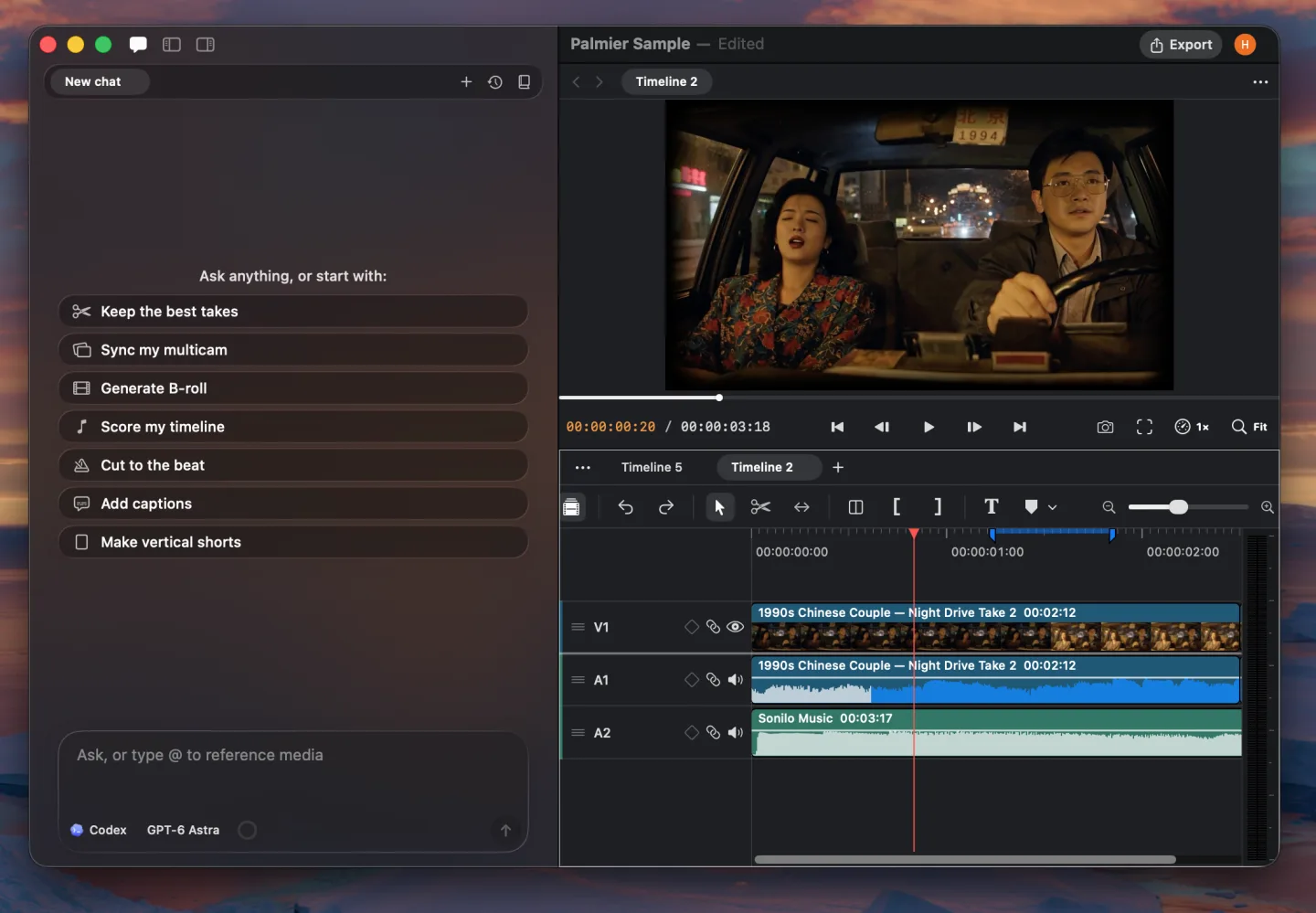
You can also chat with an agent directly inside a Palmier project. You can either configure your own Claude Code/Codex, or use the Palmier agent.
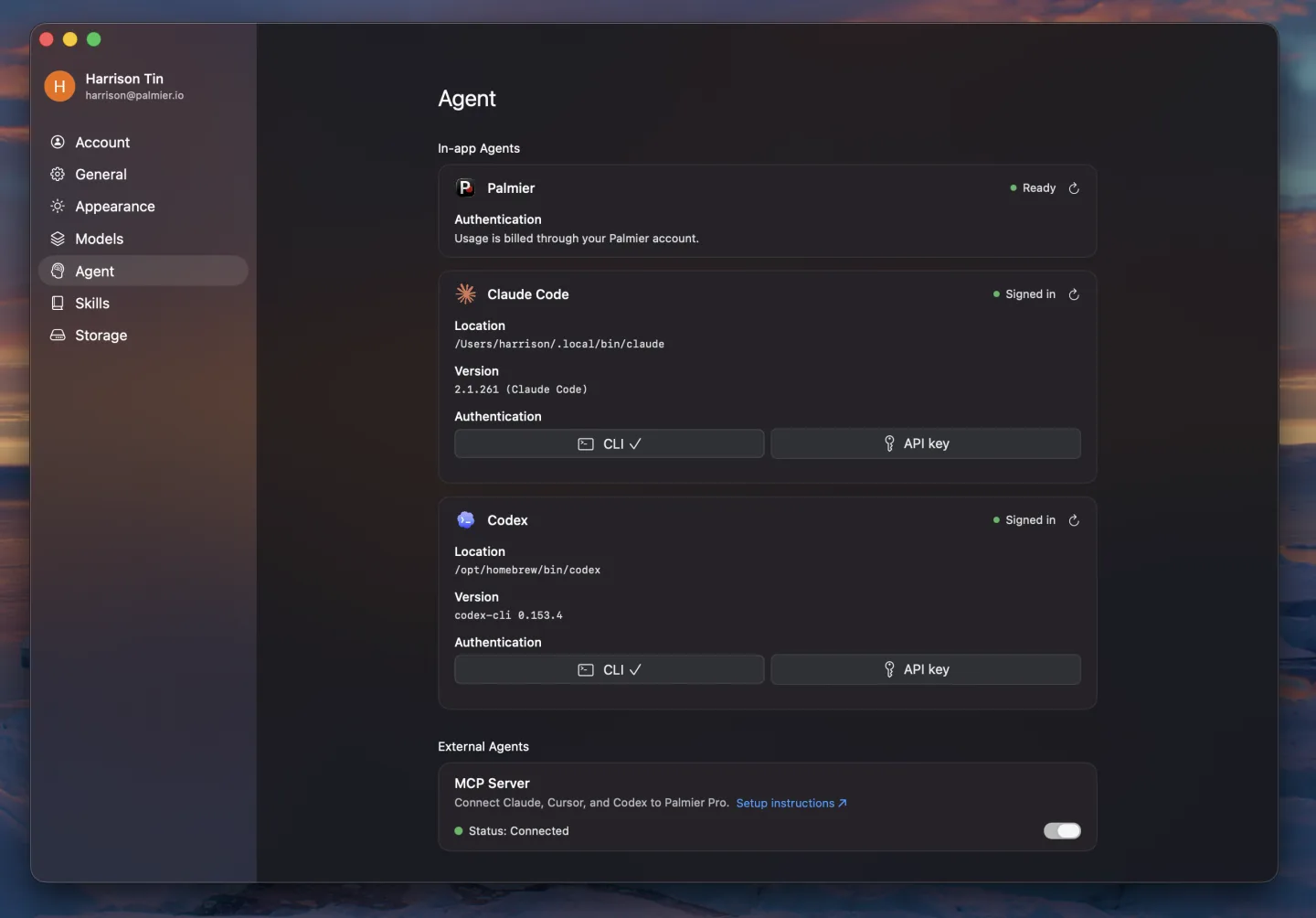
Claude Code
Install Claude Code if it is not already on your Mac. Authenticate with an Anthropic API key, or sign in with the CLI to use your existing Claude subscription.
Codex
Install Codex if it is not already on your Mac. Authenticate with an OpenAI API key, or sign in with the CLI to use your existing Codex subscription.
Palmier
Palmier is built in. Sign in and subscribe to use Palmier credits.
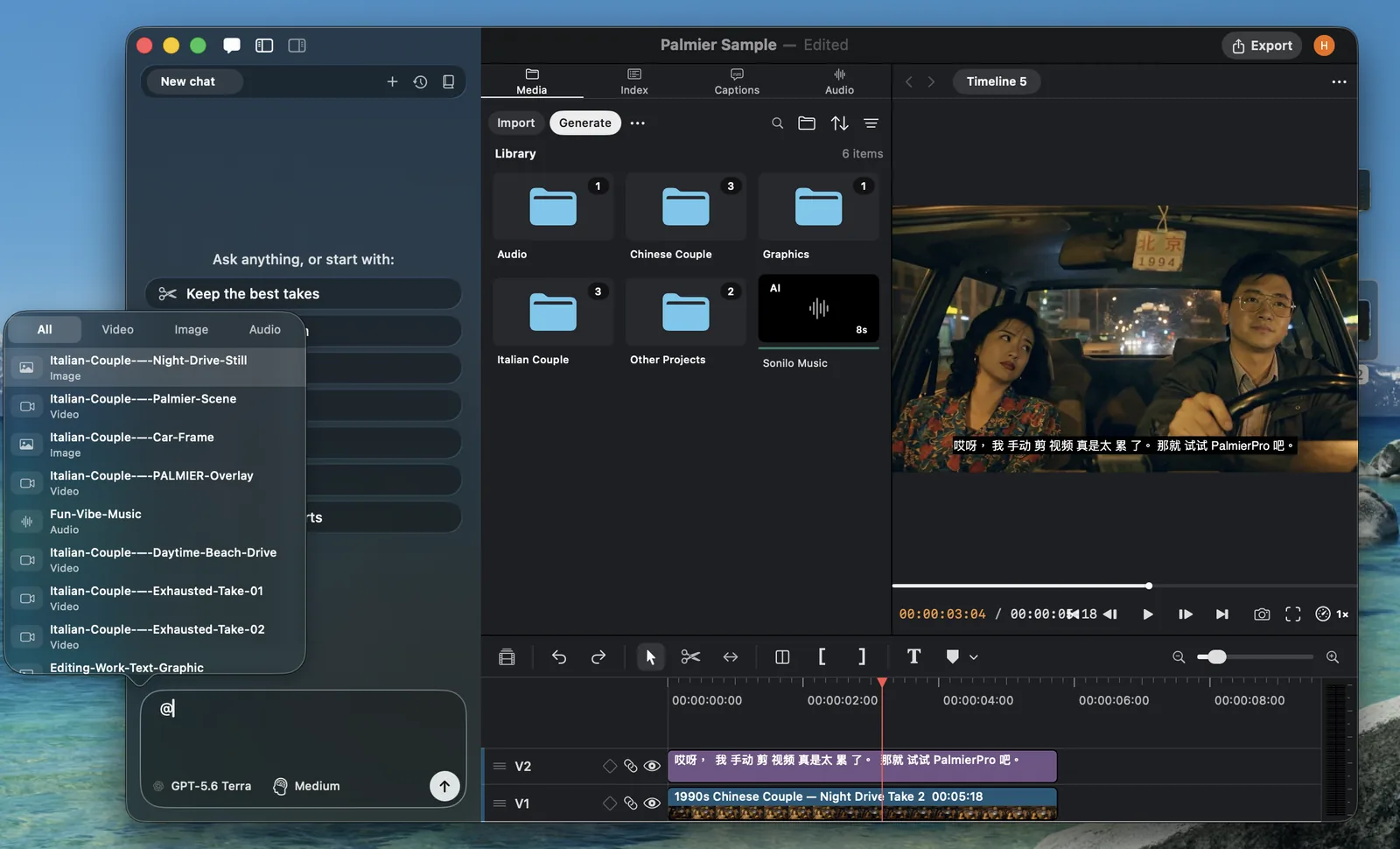
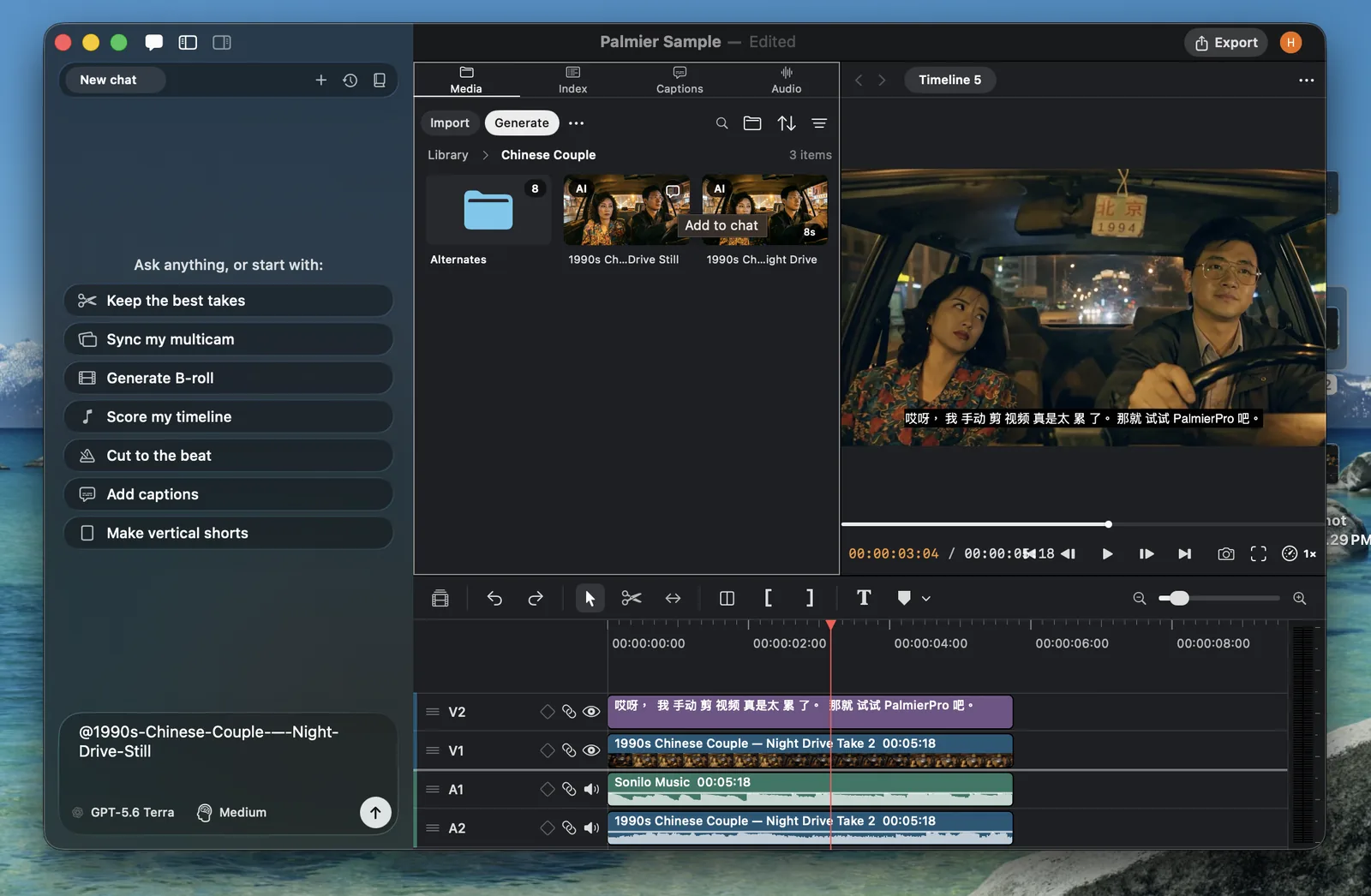
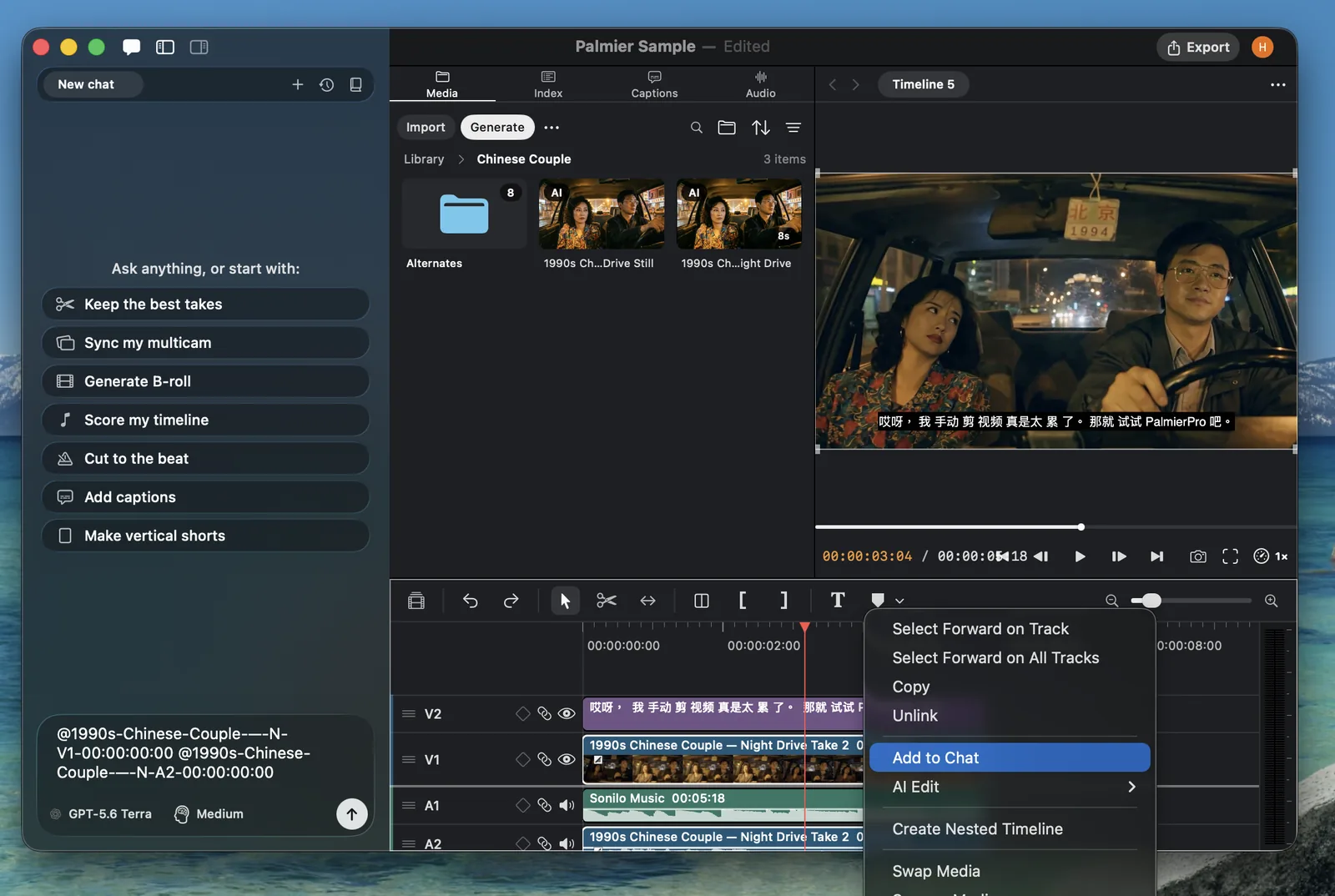
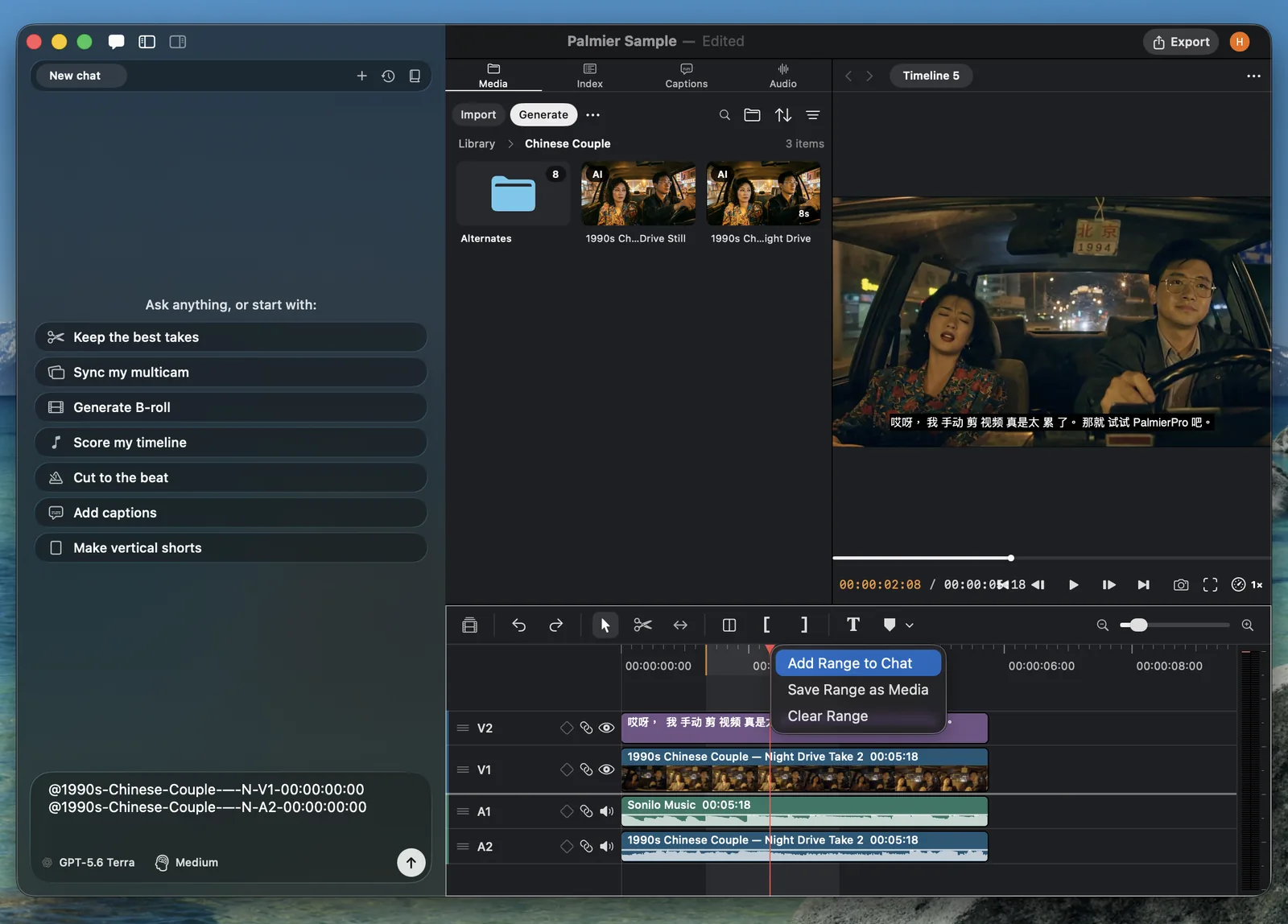
Reference project context
Add project media and timeline clips to the conversation without typing their names manually.
Skills
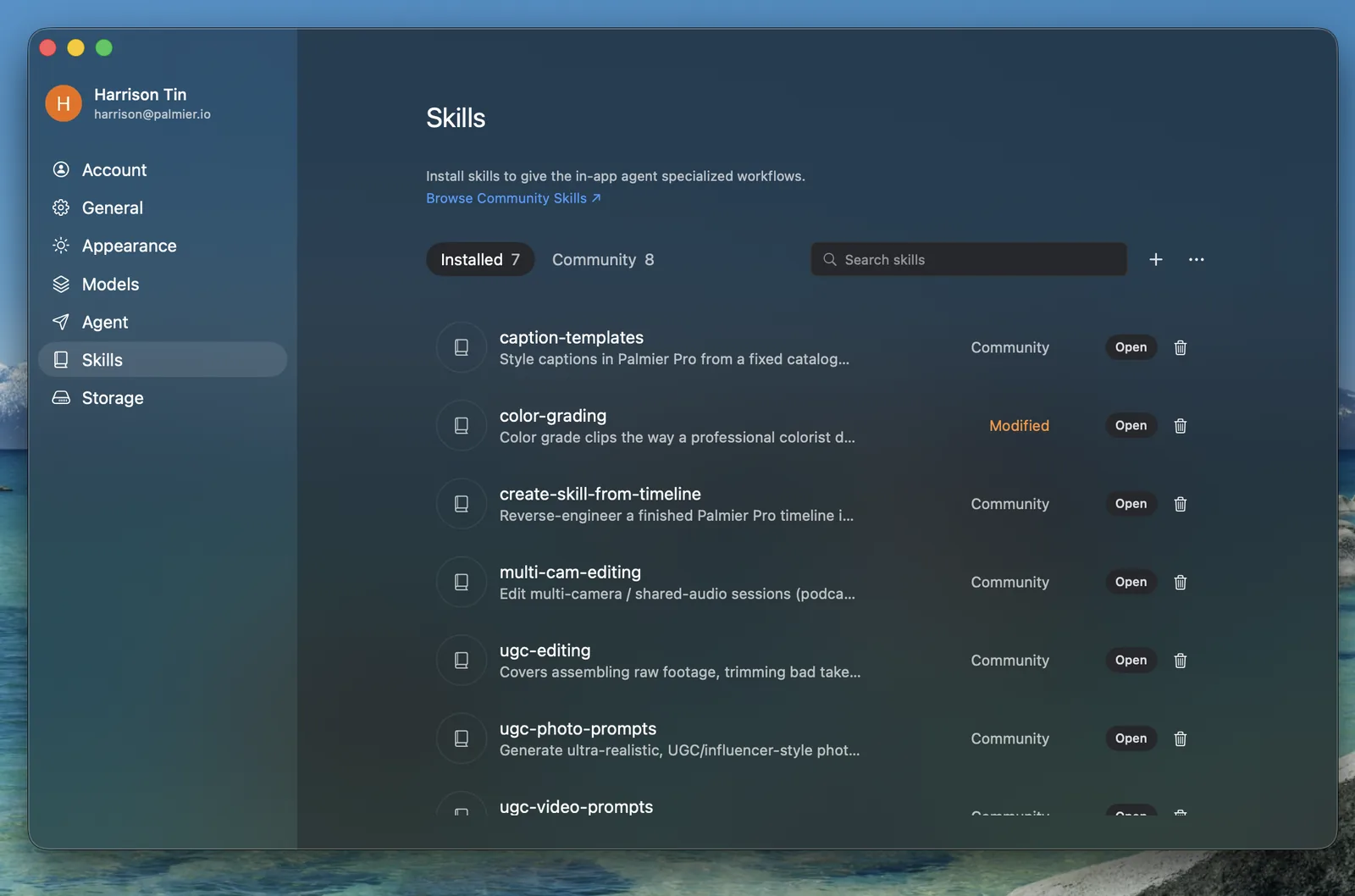
Skills are reusable Markdown instructions for editing styles, AI generation workflows, caption treatments, and other repeatable tasks.
Manage skills
Palmier manages skills only for the Palmier agent and stores them in ~/.palmier/skills. Claude Code, Codex, and other external agents manage their own skills.
Community skills
The community skill repository includes reusable skills and examples for common workflows.
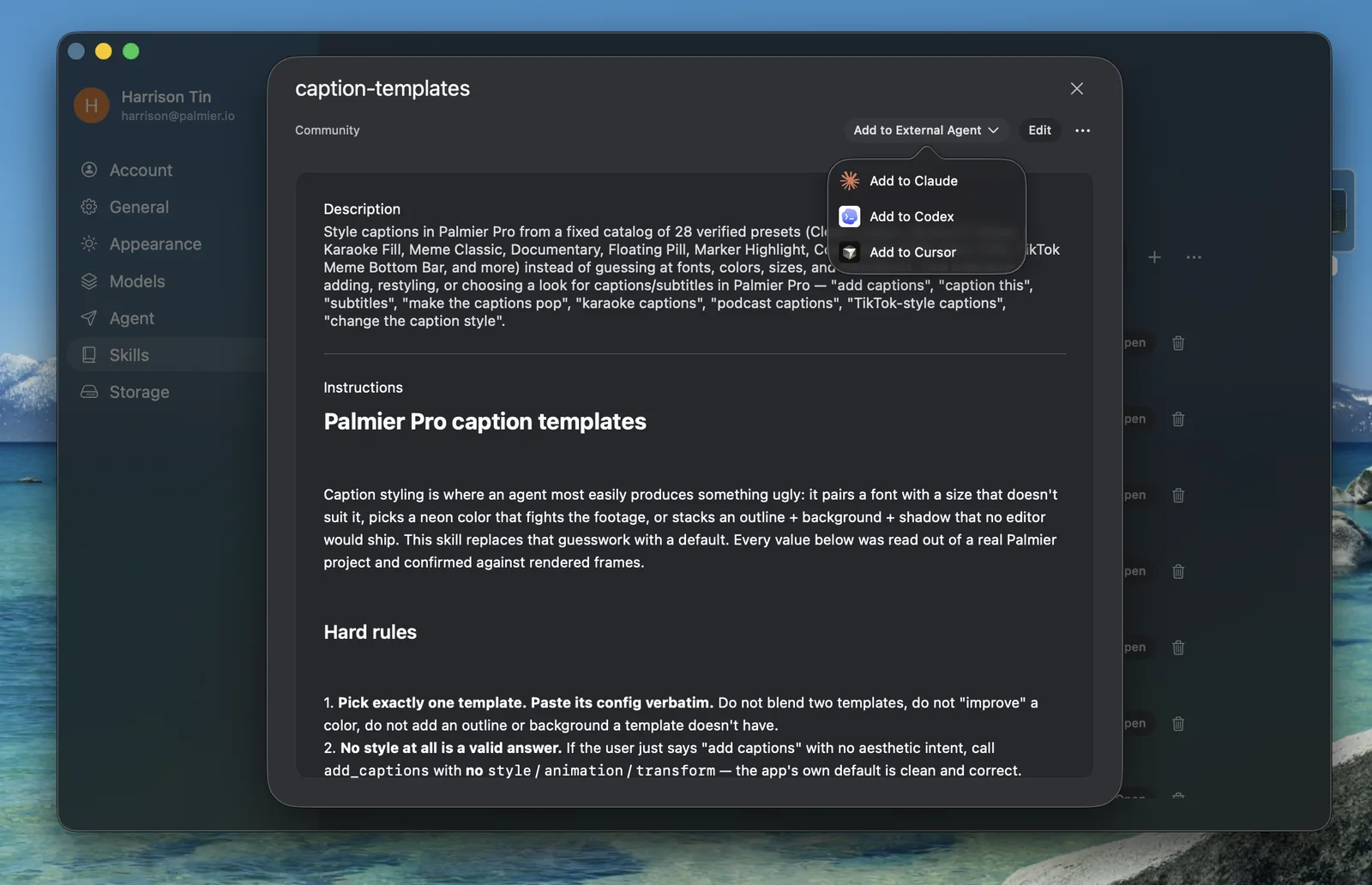
Community skills can be installed for the Palmier agent. To use one with Claude Code, Codex, or Cursor, open the skill and select Add to External Agent.
References
Tools and capabilities
Palmier exposes focused tools for project access, media management, timeline editing, finishing, generation, and export. The agent chooses and combines these tools based on your request.
Projects and timeline context
manage_project: List, create, open, and close Palmier projects. This is mainly for external MCP clients because in-app chat already belongs to one project.get_timeline: Read project settings, tracks, clips, markers, effects, keyframes, and the current timeline structure.inspect_timeline: Render the composited timeline at one or more frames to review the visible result.create_timeline: Create an empty timeline or duplicate an existing timeline as a new version.set_active_timeline: Switch the timeline targeted by later tool calls.set_project_settings: Change frame rate, resolution, or aspect ratio and refit the existing edit.undo: Revert the latest action in the shared editor history.
Media library
get_media: List media assets, folders, generated items, and project timelines.import_media: Import local files, folders, remote URLs, subtitles, or solid-color mattes.inspect_media: View sampled frames and transcribe the audio of one media asset.search_media: Search footage by what appears on screen or what is spoken.organize_media: Create folders, move items, rename assets, and remove media.capture_frame: Save a source or timeline frame as a reusable image asset.
Timeline editing
add_clips: Place media on the timeline and overwrite anything occupying the destination range.insert_clips: Insert media and ripple later clips forward without overwriting them.move_clips: Move clips to another frame or compatible track.split_clips: Add clip boundaries at exact timeline frames.remove_clips: Remove clips and their linked partners.ripple_delete_ranges: Remove timeline ranges and close the resulting gaps.swap_clip_media: Replace a clip's source while preserving its edit, effects, and timing.set_clip_properties: Change trims, duration, opacity, volume, crop, framing, fades, and blend mode.edit_speed: Set a uniform playback rate, create a speed curve, or reset a clip to 1×.set_keyframes: Animate volume, opacity, rotation, position, scale, crop, or blur.copy_clip_settings: Copy static visual, text, or audio settings to compatible clips.manage_clip_links: Link or unlink clips without moving them.manage_tracks: Reorder, name, mute, hide, sync-lock, or remove tracks.manage_markers: Create and manage frame or range markers for feedback and review.apply_layout: Arrange clips into full-frame, split, picture-in-picture, sidebar, or grid layouts.
Speech, text, and captions
get_transcript: Read the spoken transcript of the edited timeline with word timing.remove_words: Remove selected words or repeated filler words and close the gaps.remove_silence: Detect and remove quiet pauses without cutting music or loud ambience.detect_beats: Find beats and downbeats in a music asset for beat-synced editing.add_texts: Create authored text clips on the timeline.update_text: Edit text content, typography, fills, animation, and placement.add_captions: Transcribe timeline audio or place imported subtitles as caption clips.
Multicam and synchronization
sync_clips: Align clips by timecode or audio.manage_multicam: Create a synchronized multicam group or dissolve one.get_multicam: Read group members, angle labels, and the current program cut.change_cam: Switch camera angles over full-frame or multi-angle timeline ranges.
Color, effects, masks, and audio
apply_color: Adjust primary color controls, curves, color wheels, hue curves, and LUTs.inspect_color: Measure scopes for a clip or media asset and compare it with a reference.apply_effect: Add or adjust blur, sharpen, noise reduction, keying, and stylized effects.manage_masks: Create basic masks or tracked Magic Masks and control their isolation.denoise_audio: Apply on-device speech enhancement to an audio clip.
AI generation
list_models: Read current model capabilities, supported inputs, and output options.generate_image: Generate or transform images from prompts and references.generate_video: Generate video from text, frames, references, or source video.generate_audio: Generate speech, music, sound effects, dubbing, or voice cleanup.upscale_media: Increase image or video resolution and optionally interpolate video frame rate.
Export and feedback
export_project: Queue a video, XML, FCPXML, or self-contained Palmier project export.manage_exports: Review export progress, warnings, results, or cancel a queued job.send_feedback: Send a product issue or suggestion with attached application context.